OBJ vs STL: what's the difference and which one should you print?
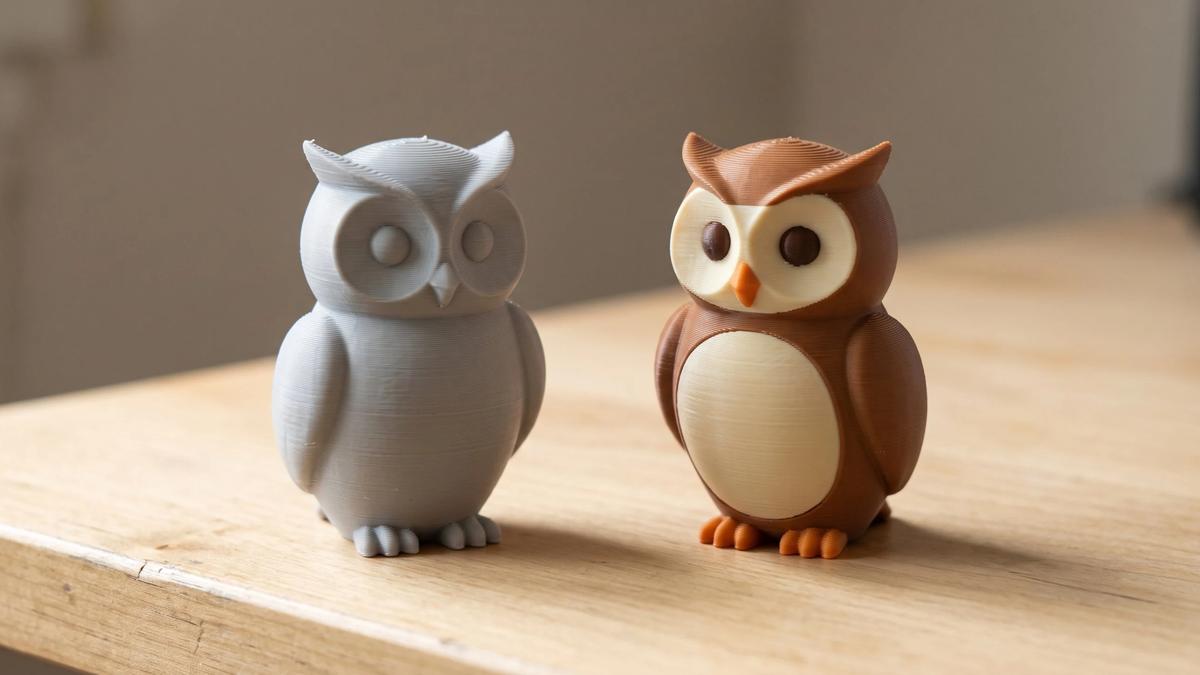

STL and OBJ both describe a 3D model as a mesh - a surface built from small flat faces. STL stores that surface as triangles and nothing else. OBJ can also store faces with four or more corners, and it can point to separate files that hold color and texture.
For a single-color print, STL vs OBJ generally makes no difference to the part when both describe the same shape, and STL is the simpler file to handle. OBJ matters when color matters, or when it's the only format you were given.
OBJ vs STL at a glance
| Feature | STL | OBJ |
|---|---|---|
| Shape | Triangles only | Triangles, four-sided faces and larger polygons |
| Color and texture | None in the standard format | Material colors in a separate .mtl file, textures as image files; some exporters add vertex colors |
| Files per model | One | One to several (.obj, .mtl, images) |
| Encoding | Binary or plain text | Plain text |
| Units | None stored | None stored |
| File size | Compact as binary, large as text | Depends on what's included (see below) |
| Where you'll meet it | Model libraries made for 3D printing | 3D scans, AI model generators, models made for rendering and games |
| Slicer support | Virtually every slicer | All major slicers; color handling varies |
There's a third format worth knowing: 3MF, which can carry color, units and - in slicer project files - print settings in a single file. If a model is offered as 3MF too, our 3MF vs STL comparison explains when it's the better download.
What an STL file stores
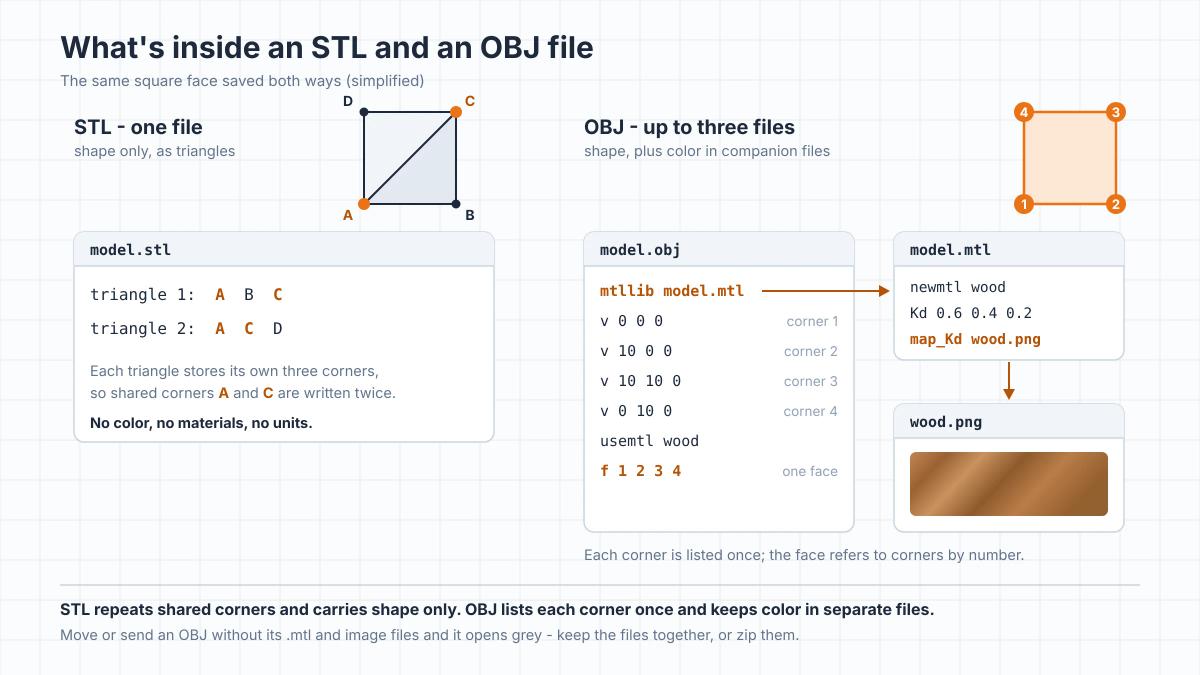
STL dates back to the late 1980s, when 3D Systems created it for its first commercial printers; the name comes from stereolithography, the technology those printers used. An STL file is a list of triangles. Each triangle is stored as its three corner points plus a normal - a direction that marks which side faces outward.
Because every triangle carries its own corners, a point shared by several neighboring triangles is written once for each of them. The file comes in two versions: binary, which is compact, and ASCII, which is readable text and several times larger.
Either way, the standard format holds no color, no material and no units. A few programs squeeze color into unofficial extensions, but most software ignores them. The coordinates are plain numbers, and slicers assume they're millimeters. That simplicity is exactly why STL opens everywhere. Our guide to what an STL file is covers the format and its common problems in more depth.
What an OBJ file stores
OBJ was created by Wavefront Technologies around 1990 for its Advanced Visualizer animation software, and it still shows its roots in computer graphics. It's a plain-text format that works like a numbered parts list: first a list of every corner point, each written once, then a list of faces that refer to those points by number. Alongside the points it can store texture coordinates, which say which part of an image lands on which face, and normals, which programs use for shading.
A face in an OBJ isn't limited to three corners. Four-sided faces and larger polygons are allowed, which is one reason 3D artists like the format for models they'll keep editing.
The OBJ specification also describes curved, free-form surfaces, and that's where claims that OBJ is "more precise" come from. The OBJ files you'll download for printing are ordinary polygon meshes, though, and slicers read them as meshes.
An OBJ can carry color in three ways, and slicers treat them differently:
- Material colors. A companion material file (.mtl) gives groups of faces a flat color.
- Texture images. The .mtl names an image that's wrapped over the surface using the texture coordinates.
- Vertex colors. Some programs write a color for every point directly into the OBJ. This is a widely used extension rather than part of the original format.
The first two live outside the main file, which explains most cases of missing color.
Why an OBJ opens without its colors
When the color comes from a material file or a texture, an OBJ only shows it if those files travel with it. Send someone the .obj alone, or move it to a new folder without the .mtl and the texture image, and it opens as a plain grey model. The geometry is all there; the color simply isn't.
Keep the files together, with the names and folder layout they had when they were exported, and zip them when you share or upload them. Print services that accept textured OBJ files typically ask for one ZIP with the .obj, the .mtl and the images, often with no subfolders inside, so follow their upload instructions.
If the color still goes missing, open the .mtl in a text editor and look at the texture line. A path to a folder on someone else's computer, such as C:\Users\Name\Desktop, won't work anywhere else. A plain file name, or a path relative to the .obj, works as long as the image sits where that path points.
Where you'll run into OBJ instead of STL
If you download from model libraries built for 3D printing, ours included, you'll mostly get STL or 3MF. OBJ tends to arrive from elsewhere:
- 3D scans. Scanning and photogrammetry apps capture color as well as shape, so a full OBJ export includes texture images. Polycam, for example, exports OBJ and STL on its paid plans, and recommends STL when the model is going to an FDM or resin printer.
- AI model generators. Tools that turn a prompt or a photo into a 3D model often export OBJ with separate texture files. Meshy's documentation suggests STL for single-color printing and 3MF for color. Many scanning apps and generators also offer GLB, a single-file format with the textures inside. Cura and Bambu Studio can import it too, though what happens to the textures depends on the slicer.
- Models made for rendering or games. Artists use OBJ to move models between programs, and many of those models were never meant to be printed.
An OBJ can describe a perfectly printable part, but a model built for the screen may need repair or added thickness before it prints. It can have holes in its surface, surfaces with no thickness at all (a leaf or a cape made of a single flat sheet), or pieces that float without touching the rest.
Before you print an OBJ from one of these sources, check four things. The mesh should be closed and solid - your slicer's repair tools and the steps in our guide to editing STL files help here. The scale should be right. The model may load lying on its back, because many graphics programs treat a different axis as "up", so rotate it before slicing. And thin parts should be thick enough for your printer to reproduce.
What your slicer does with an OBJ
Every major slicer opens OBJ files - PrusaSlicer, Cura and Bambu Studio all list it as a supported format. Where they differ is what happens to anything beyond the shape.
PrusaSlicer reads only the geometry. Its documentation says material and texture information is ignored on import. It splits four-sided faces into triangles on its own, but it won't load an OBJ that contains faces with more than four corners. If a file refuses to open, re-export it from your 3D program with the faces triangulated.
Bambu Studio can bring the color across. When an OBJ has colors assigned through its material file or as vertex colors, Bambu Studio imports them and matches each color to one of your filaments, and you can change the matches before slicing. Recent versions go further and turn a textured OBJ, one whose color comes from an image, into painted color regions for multicolor printing.
That's handy for a scanned or AI-generated model, but a detailed texture becomes a great many color changes, and every change flushes filament during purging. Our guide to how the AMS works explains where that waste comes from. Other slicers handle OBJ color differently, and support changes between versions, so check what yours does before relying on it.
Whatever the format going in, the slicer ends up doing the same job: it cuts the mesh into layers and writes G-code. An OBJ and an STL of the same shape print the same. Here's how slicing turns a model into G-code if you want the details.
Which file is bigger?
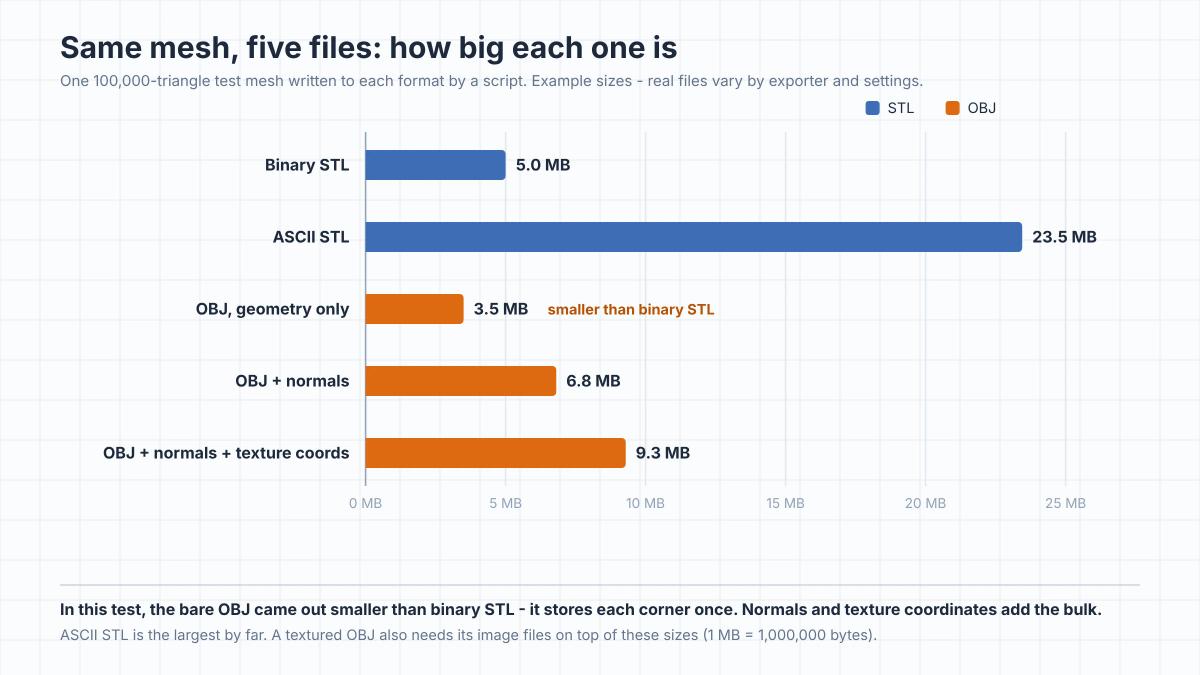
The usual answer is "OBJ", but it depends on what's inside. To check, we generated a 100,000-triangle test mesh and wrote it to each format with a script:
| Format | File size |
|---|---|
| Binary STL | 5.0 MB |
| ASCII STL | 23.5 MB |
| OBJ, geometry only | 3.5 MB |
| OBJ with normals | 6.8 MB |
| OBJ with normals and texture coordinates | 9.3 MB |
Example sizes for one test mesh, geometry files only - texture images aren't included (1 MB = 1,000,000 bytes). Real files depend on the exporter, its precision settings and what it includes.
In this test, the bare OBJ came out smaller than the binary STL because OBJ writes each point once and lets faces refer to it, while STL repeats a point for every triangle that touches it. OBJ grows past STL when the exporter adds normals and texture coordinates - Blender's OBJ exporter includes both by default - and a textured model brings image files on top of that. In this test, ASCII STL was the largest file of all.
For printing, the difference rarely matters. It shows up mostly when you upload or share files, and zipping makes every format noticeably smaller.
Which one should you download?
When a model comes in several formats, pick by what you're doing with it:
- Single-color print on an FDM or resin printer: STL. If a 3MF is offered as well, it can be the better pick, since it may come with parts arranged and settings saved.
- Multicolor print with an AMS or another multi-material system: 3MF with the colors already assigned, or a set of STLs split by color that you load together and give each its own filament. A colored OBJ is a workable fallback in Bambu Studio.
- Full-color print from a print service: often an OBJ with its .mtl and texture images in one ZIP. Services may also accept VRML or other formats depending on the printer and software, so check the provider's current file requirements.
- You only have an OBJ: open it in your slicer as it is. There's no need to convert it first.
- You plan to edit the mesh: if the OBJ was modeled with four-sided faces, it keeps them, which makes editing in Blender and similar programs easier. Scans and AI-generated models are triangles in either format.
Converting OBJ to STL (and back)
Going from OBJ to STL keeps the shape. Four-sided and larger faces are split into triangles, and the surface stays essentially the same, though a face that isn't perfectly flat can shift slightly depending on how it's split. What you lose is everything else: material colors, textures and texture coordinates have no place in an STL. Converting doesn't repair a broken mesh, either.
Going the other way, from STL to OBJ, adds nothing. The file changes format, but there's no color to carry over.
The simplest converter is often the slicer you already have. PrusaSlicer, for example, can export a loaded model as STL from its File menu. Blender imports and exports both formats if you want more control.
Online converters work too, but they mean uploading the file to someone else's server. Check the model's license and the service's privacy terms first, and keep unreleased or commercial designs of your own off services you don't trust.
If you're making your own models rather than converting someone else's, start from a clean export. Our guide to making an STL file that actually prints covers the settings that matter.
Frequently asked questions
Can you 3D print an OBJ file?
Yes. Every major slicer opens OBJ files and slices them just like STL - the printer only ever receives the G-code. Whether the print works depends on the model: an OBJ made for games or rendering may need repair first.Is OBJ better than STL for 3D printing?
For single-color printing, neither is better: the same shape prints the same, and STL is simpler. OBJ helps only when you need what it adds - color, textures or four-sided faces for editing. For multicolor FDM printing, 3MF is usually a better choice than either.Will my printer keep the colors from an OBJ file?
That depends on your slicer rather than your printer. PrusaSlicer ignores OBJ colors and textures. Bambu Studio imports material and vertex colors, and recent versions can turn textures into painted regions. In a slicer without OBJ color support, the model loads in a single color.Why does my OBJ show up grey in the slicer?
Either your slicer doesn't read OBJ color, or the color files are missing. The .mtl file and texture images have to sit where the .obj and .mtl expect them - usually in the same folder, under the same names.Is an OBJ file bigger than an STL?
Not always. An OBJ that stores only geometry can be smaller than a binary STL of the same mesh. OBJ files with normals, texture coordinates and texture images usually end up larger.Does converting OBJ to STL lose quality?
The shape stays essentially the same: faces with four or more corners are split into triangles that follow the same surface. What you lose is color, materials and textures, because STL can't store them.What is an MTL file?
An MTL (material template library) file is the companion to an OBJ. It defines materials by name - mainly colors and the names of texture images - and the OBJ says which faces use which material. An MTL file contains no shape at all.Do OBJ or STL files store units?
Neither does. Both store plain numbers, and slicers treat them as millimeters. A model designed in inches or meters opens far too small, and a life-size scan can open far too large for your build plate. Scaling it in the slicer fixes both.
About the author
Written by
Ethan MillerI’m a 3D printing specialist with a background in mechanical design and hands-on experience with FDM 3D printing. I focus on filament selection, slicer settings, print optimization, and troubleshooting common printing issues. I enjoy testing different materials and printing techniques and sharing practical guides that help makers get more consistent and reliable results from their printers.