How to make an STL file for 3D printing (that actually prints)
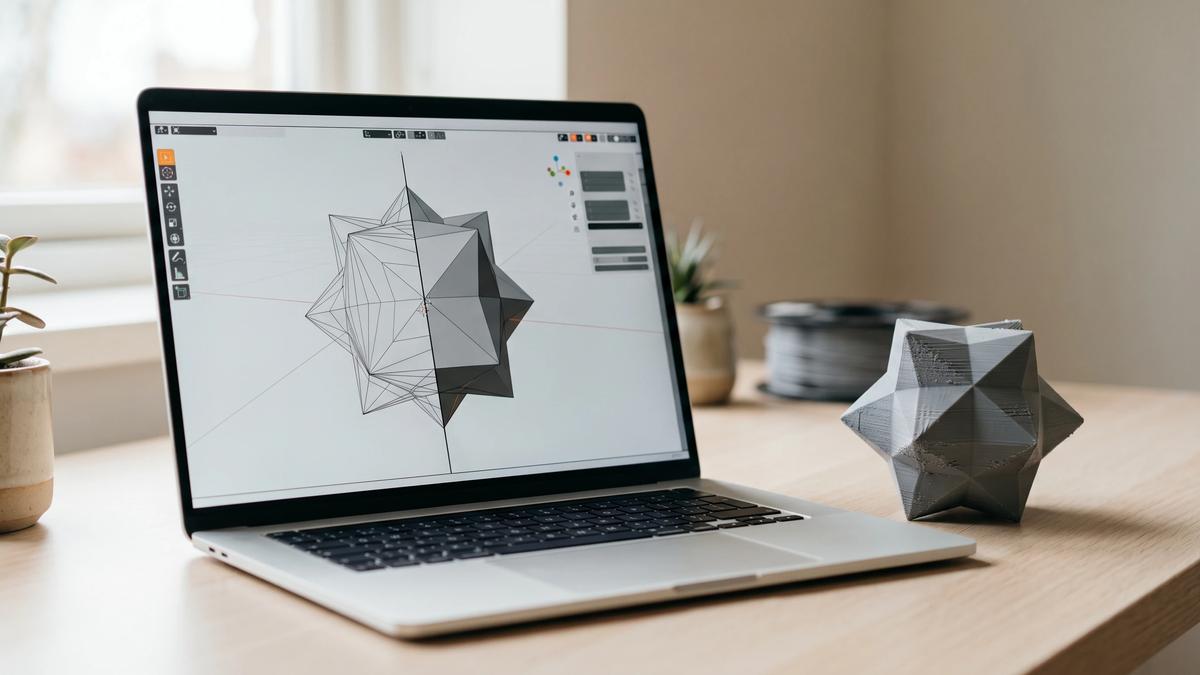

Hitting the "Save As" button in your modeling software does not guarantee a successful 3D print. Learning how to create STL files for 3D printer hardware means understanding the physical reality of molten plastic and cured resin. A slicer program cannot magically fix terrible geometry. If you export a mesh with microscopic gaps, paper-thin walls, or reversed faces, your printer will fail, waste material, and leave you scraping plastic spaghetti off your build plate.
Here are the technical parameters you need to prepare clean, watertight geometry.
What is an STL file? (and why 3MF is replacing it)
An STL file describes your model's surface as a mesh of flat triangles - nothing else. It has no concept of units, color, or material, which is exactly what makes it universal and exactly where it runs out of room. (The full breakdown of how STL works covers the format in depth - the short version below is just
what matters for exporting one.)
Critically, the STL format is unitless. A value of "1" in an STL file simply means one generic unit. When you import that file into a slicer, the software assumes that one unit equals one millimeter.
The industry is in a transitional phase. Technical documentation from Microsoft, the 3MF consortium, and developers behind software like Bambu Studio treats STL as the outdated format - 3MF stores physical scale, units, multi-color data, and object hierarchy, and compresses to a smaller file. Despite that, STL remains the universal standard for sharing and selling models online.
| Feature | Feature STL | 3MF |
|---|---|---|
| Geometry | Triangles only | Triangles + internal hierarchy |
| Units of scale | Unitless (assumes mm) | Native units embedded |
| Color & materials | None | Full support |
| File compression | Uncompressed | ZIP compressed |
| Industry status | Universal sharing standard | Modern technical standard |
Best software to make STL files
Finding the best software for STL files depends entirely on what you intend to print. A program built for carving dragon scales will not help you design a precise replacement gear for a kitchen appliance.
For mechanical and precision parts (CAD)
Parametric CAD (Computer-Aided Design) software relies on mathematical sketches and exact dimensional inputs rather than pushing and pulling digital clay. This is mandatory when you need parts to fit together with real-world hardware.
Tinkercad. This remains the most accessible, free browser-based tool for beginners. It relies on basic geometric primitives (cubes, cylinders, spheres) that you combine or subtract to build simple functional brackets and mounts.
Autodesk Fusion. This is the dominant choice for functional, parametric design. You can design an entire mechanical assembly, check the clearances, and export each component individually. Autodesk offers a free Personal Use license for hobbyists - but it's limited to non-commercial projects generating under $1,000 a year, so it isn't the right license if you plan to sell the files you design. The paid commercial subscription runs $680/year ($85/month). If selling models is the plan, budget for the paid tier or a comparable free tool like FreeCAD.
For miniatures and organic shapes (sculpting)
Sculpting software handles millions of polygons, allowing you to manipulate geometry like digital clay. This is the only way to create tabletop gaming miniatures, cosplay helmets, and organic display pieces.
Blender. This open-source software is the primary free tool for polygonal modeling and sculpting. It is incredibly powerful and includes a built-in, free add-on called the 3D-Print Toolbox, which is essential for checking your meshes for overhangs and manifold errors before slicing.
ZBrush. The industry standard for high-detail figurines and tabletop miniatures. It handles massive polygon counts without lagging. ZBrush is subscription-only, at $49/month or $399/year for a standalone license, or bundled into the wider Maxon One suite.
Preparing your 3D model: the printability checklist
Before you export a 3D model to STL, you must prepare the geometry to survive the physical printing process. A model that looks great on a computer monitor can easily shatter in the real world if you do not prepare it using the rules below.
Wall thickness and shrinkage rules
Your digital walls must align with the physical limitations of your printer's nozzle or light source.
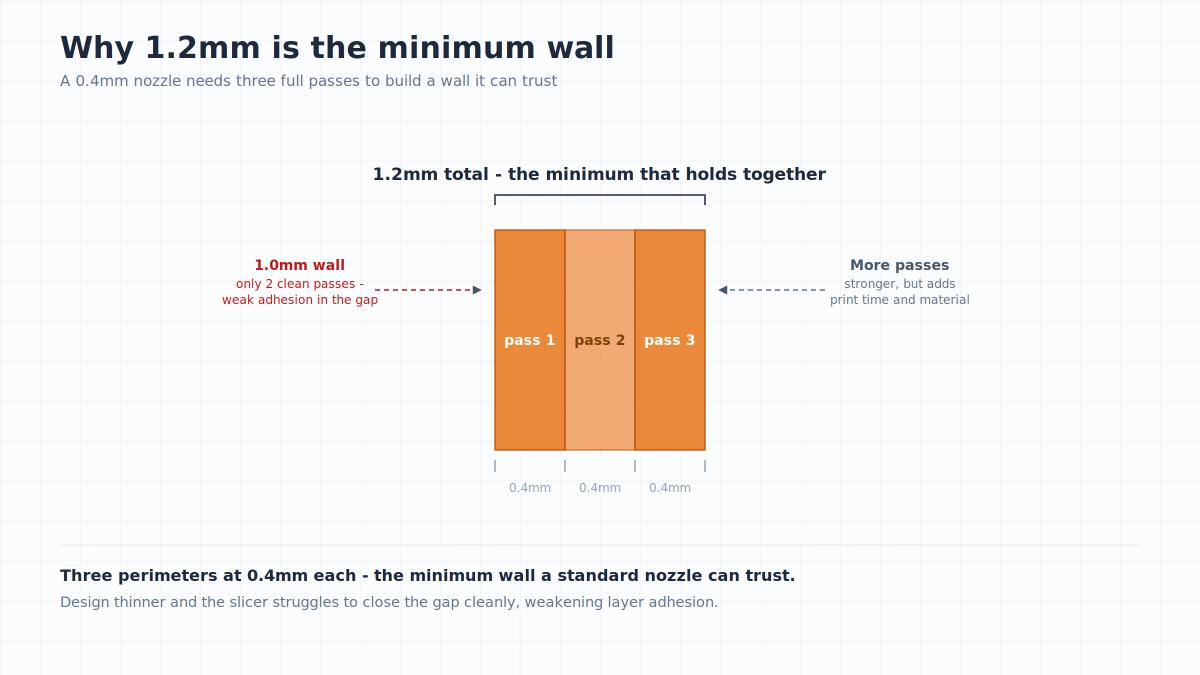
For FDM printing with a standard 0.4mm nozzle, your minimum structural wall thickness must be 1.2mm. This number forces the slicer to lay down three continuous passes of plastic (0.4mm × 3). If you make a wall 1.0mm thick, the slicer will lay down two outer perimeters and then struggle to fill the remaining gap cleanly, resulting in weak layer adhesion.
For resin (photopolymer) printing, you want to hollow your models to save expensive material. Hollowed models must have a wall thickness of 1.0-1.5mm. When hollowing for resin, ensure you generate internal supports inside the cavity, otherwise internal overhangs will collapse during printing.
You must also punch physical drain holes (minimum 2-3mm in diameter) into the geometry near the lowest points of the model. Without drain holes, the hollow cavity acts like a suction cup against the FEP film, and the vacuum forces will rip the print off the build plate. More importantly, trapped liquid resin is toxic. Over time, it will emit gasses that crack the cured print open, leaking uncured chemicals. Drain holes allow you to wash the inside thoroughly.
You must also account for thermal shrinkage. FDM plastics shrink as they cool from extrusion temperatures. ABS has a typical shrinkage rate of 0.5-0.8%. If dimensional accuracy matters, you must scale your model by +0.5% in your CAD software or slicer to compensate. More on printing with ABS.
Engineering tolerances for assembly
If you design a 10mm peg and a 10mm hole, they will never fit together. The physical realities of plastic extrusion - like slight over-extrusion and the "elephant foot" effect on the first layer - will make the peg slightly larger and the hole slightly smaller.
To ensure parts assemble smoothly after printing, you must model in engineering clearances. Leave a gap of 0.15-0.20mm between all sliding or interlocking joints.
Fixing geometry: normals and watertight meshes
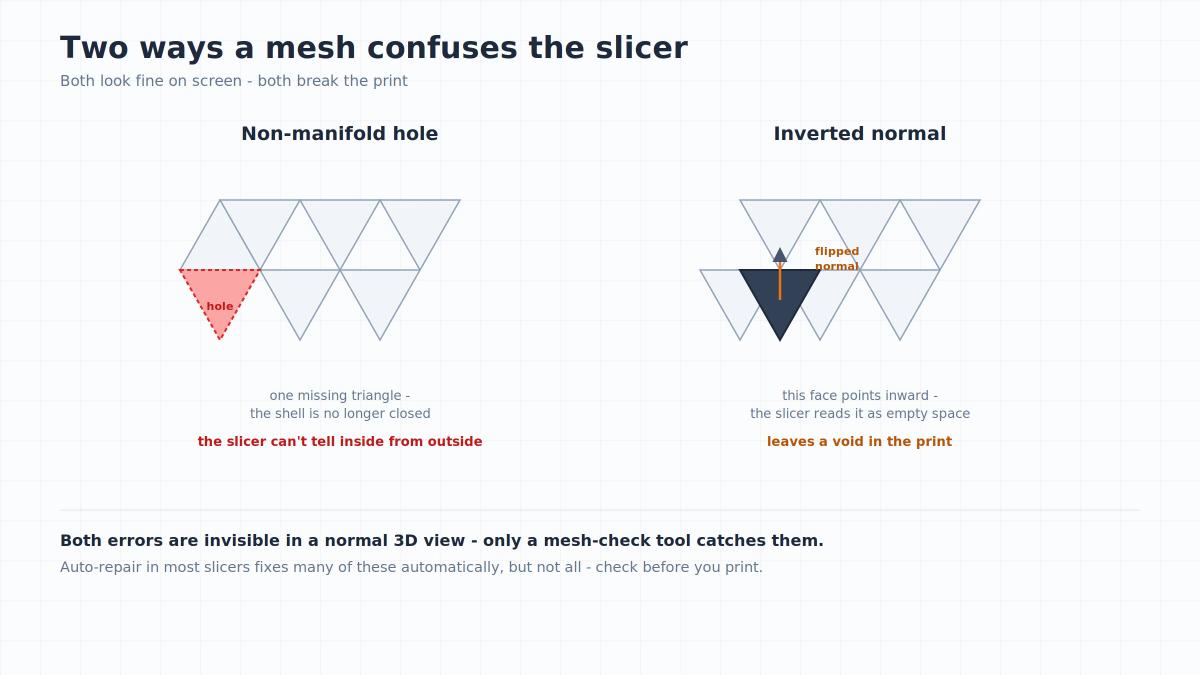
You must fix non-manifold geometry before exporting. Because an STL is just a shell of triangles, that shell must be perfectly closed, or "watertight." If there is a hole in the mesh that is just one triangle wide, the slicer cannot determine what is the "inside" of the model and what is the "outside." It will often ignore entire sections of your part.
You must also watch out for inverted normals. Every triangle in an STL file has a front face and a back face (the normal vector). If you accidentally flip a face inside-out, the slicer views that specific triangle as negative space, leaving a physical void in your print.
Finally, use Boolean unions to combine intersecting parts. If you model a character by shoving a distinct arm mesh into a torso mesh, the slicer will try to print the internal overlapping walls. This ruins infill structural integrity and causes modern slicers to generate chaotic, broken tree supports. Merge all intersecting objects into one continuous, solid shell before saving.
How to export the STL: optimal resolution settings
When you finally export the file, you must dial in your resolution settings. Because CAD software builds curved surfaces using mathematical arcs, it has to translate those smooth curves into flat triangles for the STL format.
You control this translation using a setting called chordal tolerance (or maximum deviation). This setting dictates how far the flat triangle is allowed to deviate from the true curve. The optimal chordal tolerance for 3D printing is between 0.01mm and 0.05mm.
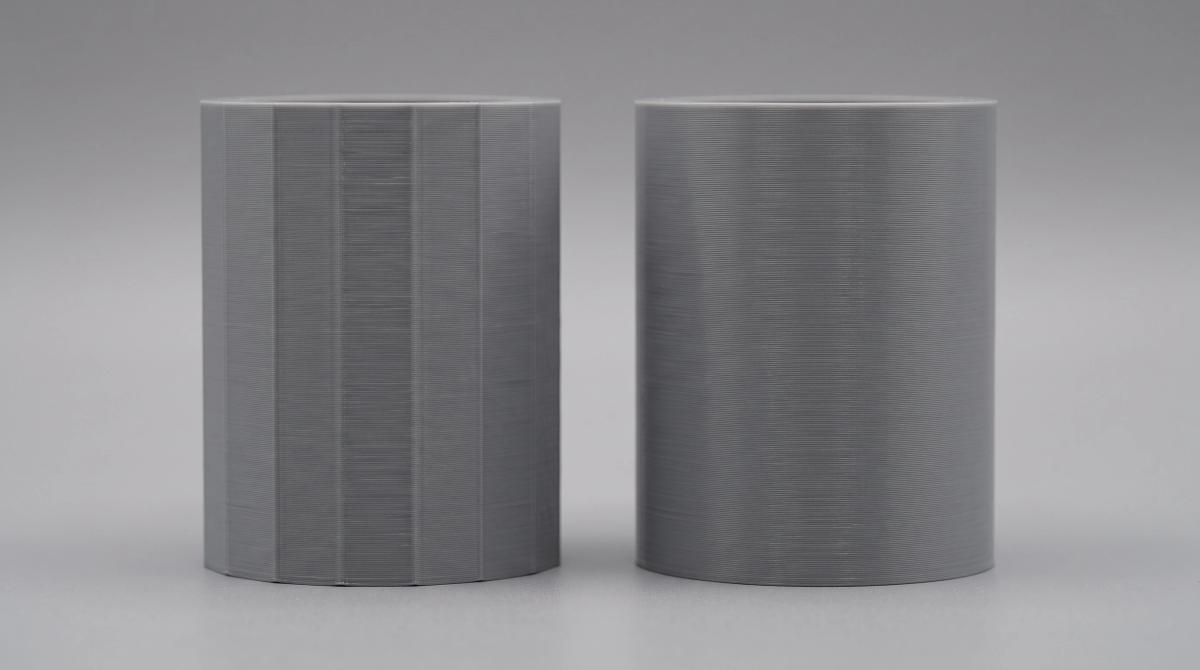
If you set the tolerance too high (like 0.1mm), your smooth cylinders will look like low-poly stop signs, and those flat facets will be permanently visible in the plastic. If you set it too low (like 0.001mm), your computer will generate millions of microscopic triangles that the 3D printer physically cannot resolve, creating a bloated, laggy file.
Always export multi-part assemblies as individual STL files (or distinct bodies within a 3MF) so the user can orient them flat on the build plate.
When saving the file, you will face the binary vs ASCII STL choice. Some outdated academic software still relies on ASCII STL files because they are human-readable text documents. The modern 3D printing industry runs on binary STL, which is dramatically smaller for the same geometry with no quality difference. Always choose binary.
If you choose to use 3MF instead, the export process is identical in most CAD software, but ensures your scale and material data remain perfectly intact.
Making money: preparing STL files for sale
If you plan to sell digital files on a marketplace, your geometry must be optimized for different users and varying hardware setups.
File size matters for online hosting and for buyers on slower connections or older computers - keep commercial figurine files as lean as the detail allows without visibly softening the print. Going well beyond what the detail needs rarely translates to a better physical result and often just frustrates buyers.
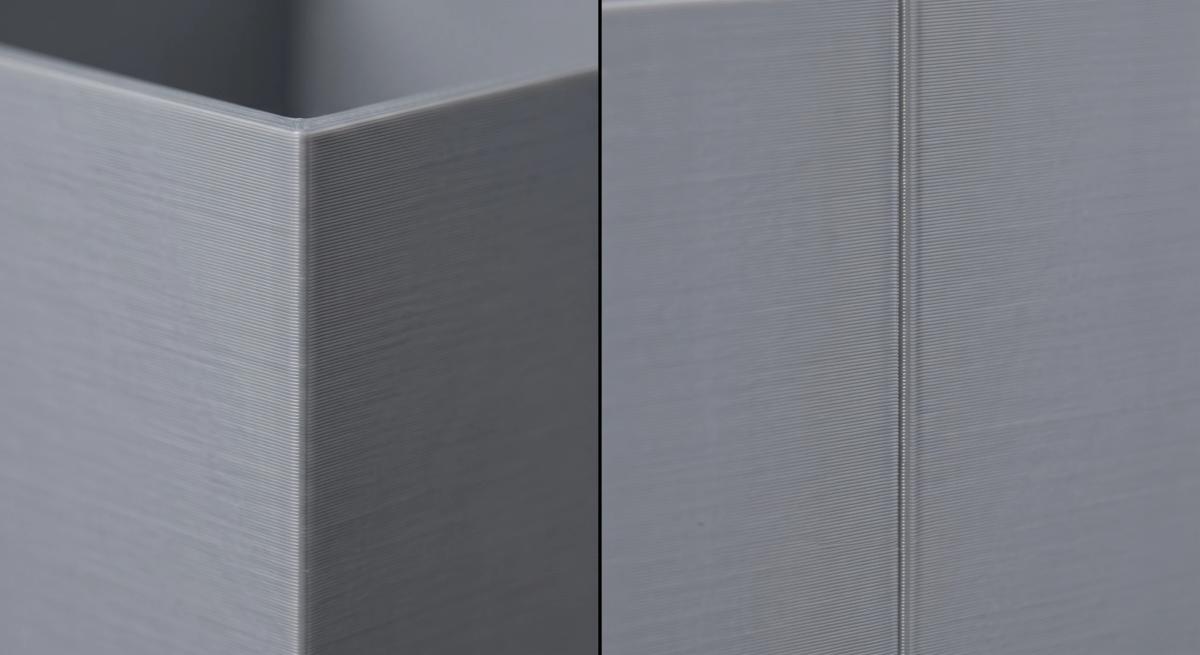
Structure your commercial files for print success out of the box. Ensure the bottom of your model is perfectly flat to maximize the contact area on textured PEI build plates. Try to hide the Z-seam - the visible scar where the printer starts and stops each layer - by modeling sharp corners or natural crevices into the back of the design where the slicer can naturally bury the seam.
Finally, never upload a model without test printing it yourself. If you are selling FDM models, run test prints on both a standard 0.4mm nozzle and a high-detail 0.2mm nozzle to ensure your thin features do not disappear in the slicer preview.
Frequently asked questions
Can I convert a 2D image (JPG/PNG) to an STL file?
Yes, you can generate 3D geometry from a 2D image by using a height map or extrusion process. Specialized converters and lithophane generators read the dark and light pixels of a JPG or PNG, translating them into physical heights and depths, which can then be exported as a printable STL.Why did my STL file open tiny in the slicer?
The STL format contains no embedded units of measurement. When you drop an STL into a slicer, the software assumes your numbers represent millimeters. If you modeled your part using inches in your CAD software, the slicer will import the model exactly 25.4 times smaller than you intended. You will need to scale the object up by 2540% in the slicer to correct it.Why is my imported model laying on its side in the slicer?
This happens because different software packages define the "up" direction differently. Blender uses the Z-axis as height, while many parametric CAD programs default to Y-up. When exporting an STL, the axes can get read differently, causing the model to flip 90 degrees. You can fix this by rotating the model flat onto the build plate inside the slicer, or by changing your CAD export settings to Z-up.How do I fix a broken or non-manifold STL file?
Many modern slicing programs, such as OrcaSlicer and Lychee, now include auto-repair algorithms that can heal a good share of broken normals and small mesh holes before slicing. If the slicer fails, you can use the free 3D-Print Toolbox add-on in Blender, or run the file through Autodesk Meshmixer.Should I save my file as binary or ASCII STL?
You should almost always save your files as binary STL. ASCII files take up significantly more hard drive space without offering any benefit to the end user. A binary file keeps your polygon count intact while cutting the file size dramatically.Why is my STL file size so huge?
Massive file sizes happen when your chordal tolerance is set too low during export, or when you fail to decimate a sculpted model. A file size well past 100MB is almost always unnecessary for standard FDM or resin printing, since the printer hardware cannot reproduce geometry that fine anyway.Does an STL file contain printing temperatures or infill settings?
No, an STL file stores nothing except the outer surface geometry of your object. It does not contain infill patterns, nozzle temperatures, layer heights, or support structures. All of those manufacturing instructions are generated later by the user inside the slicing software.
About the author
Written by
Ethan MillerI’m a 3D printing specialist with a background in mechanical design and hands-on experience with FDM 3D printing. I focus on filament selection, slicer settings, print optimization, and troubleshooting common printing issues. I enjoy testing different materials and printing techniques and sharing practical guides that help makers get more consistent and reliable results from their printers.