How to convert 3MF to STL and STL to 3MF in any slicer
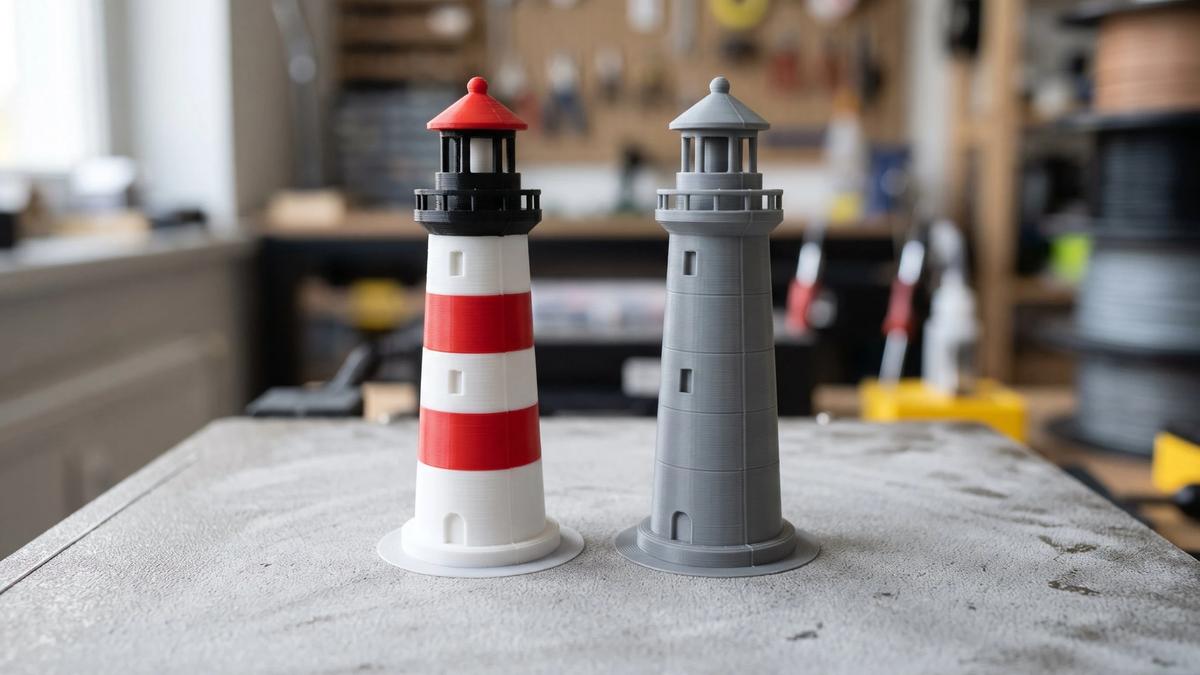

You don't need a converter website to turn a 3MF into an STL. The slicer you already print with opens 3MF files and exports STL in a few clicks, and it works the other way too. What matters is knowing what the STL can't carry: an STL is just a triangle mesh, so colors, print settings and units stay behind. This guide covers the exact menus in Bambu Studio, OrcaSlicer, PrusaSlicer and UltiMaker Cura, how to keep a multicolor model usable, and the one kind of 3MF you can't convert at all. If you're not sure what's inside the file you downloaded, our explainer on what a 3MF file is walks through it.
What survives the conversion
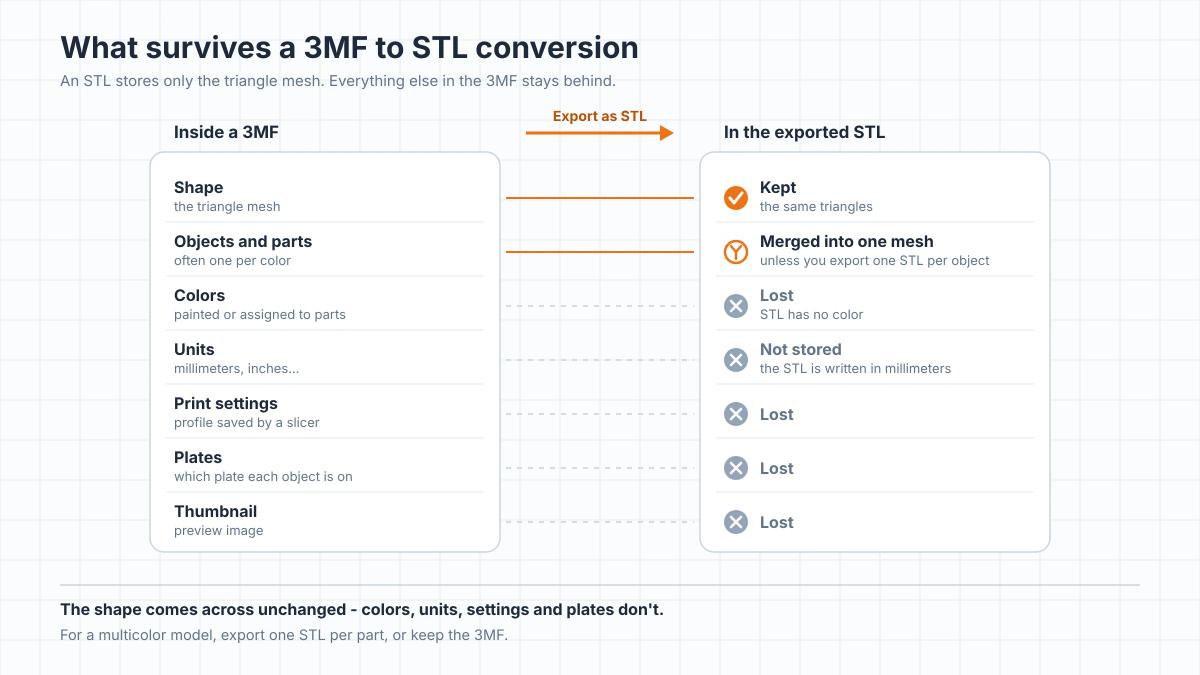
A 3MF is a ZIP archive that can hold several objects, colors, units, a thumbnail and, when a slicer saved it, a full print profile. An STL file holds only triangles. Here's what that means when you convert:
| What's in the 3MF | What happens in the STL |
|---|---|
| The model's shape | Kept - the triangle mesh comes across as it is |
| Several objects or parts | Merged into one file, unless you export each object separately |
| Copies of an object | Included where they sit, when you export everything as one file |
| Colors (painted or assigned to parts) | Lost - STL has no way to store color |
| Units | Not stored - the STL is written in millimeters, which is how slicers read it |
| Print settings and plate assignment | Lost |
| Supports | Not included - the slicer generates them when you slice |
| Thumbnail | Lost |
The shape itself doesn't get worse. A 3MF stores its geometry as a triangle mesh too, so exporting to STL writes the same triangles in a simpler file.
How to convert 3MF to STL in a slicer
All four major free slicers can do it. The menus differ, and so does what ends up in the file.
Bambu Studio and OrcaSlicer
OrcaSlicer is built on Bambu Studio, and the menus are the same:
- Open the 3MF. A project file opens with File > Open Project; to add only the model to your current plate, use File > Import > Import 3MF/STL/STEP/SVG/OBJ/AMF.
- Go to File > Export and choose one of two options. Export all objects as one STL writes everything in the project, on every plate, into a single file - models from different plates stay as far apart as the plates themselves, so the result won't fit on one bed. Export all objects as STLs asks for a folder and writes one file per object.
- To export one object, right-click it and choose Export as one STL. With several objects selected, the same menu also offers Export as STLs. To export a single plate from a project with several, right-click an empty spot on that plate, choose Select All, then right-click one of the selected objects and choose Export as one STL.
Only the model's own parts go into the STL. Modifiers - the shapes some designers add to change settings in one area - are left out. If the model has negative parts, which cut holes or slots, Bambu Studio asks whether to run a mesh boolean first, so the cut is baked into the STL. Say yes, or the STL won't have the cut. OrcaSlicer doesn't ask: it subtracts negative parts automatically and warns you if that fails, in which case the STL has only the positive parts.
PrusaSlicer
- Open the 3MF with File > Open Project, or add only the model to your current plate with File > Import > Import STL/3MF/STEP/OBJ/AMF.
- Go to File > Export > Export Plate as STL/OBJ. Everything on the plate is saved as one file. PrusaSlicer picks STL or OBJ from the file extension, so make sure the name ends in .stl.
- For a single object or part, right-click it and choose Export as STL/OBJ.
Like OrcaSlicer, PrusaSlicer leaves modifiers out and subtracts negative volumes automatically. If that fails, it warns you and saves only the positive parts.
UltiMaker Cura
- Open the 3MF with File > Open File(s).
- Go to File > Export and pick STL as the file type. Cura saves everything in the scene into one file.
- To export only some models, select them first and use File > Export Selection.
In the file type list, choose STL File (Binary) rather than STL File (ASCII): the ASCII version stores the same mesh as text and is several times larger. Unlike the other slicers, Cura writes every mesh in the scene into the file, including support blockers and modifier meshes, so delete those first.
Multicolor and multi-part models
A multicolor 3MF is where people lose the most in conversion, because there are two kinds of color and STL can't hold either:
- Painted color. The designer or a previous user painted areas of one mesh in the slicer. That paint lives only in the 3MF, and no STL export can keep it.
- Color by part. The model is several separate parts, each assigned a filament. The parts survive, but if you export them as one STL they merge into one mesh and you can no longer assign colors.
For the second kind, export one STL per part, and watch the parts that sit above the plate, such as a cap on top of a tower:
- Bambu Studio and OrcaSlicer. Right-click the object and choose Split > To objects - for a model made of several parts, each part becomes its own object - then use File > Export > Export all objects as STLs. Bambu Studio drops every new object onto the plate, so a raised part loses its height. OrcaSlicer asks whether to disable Auto-Drop to preserve Z positioning - answer Yes. If you use Bambu Studio and the model has raised parts, do this step in OrcaSlicer, which opens Bambu Studio projects, or move those parts back up after you reload them.
- PrusaSlicer. Skip the split: right-click each part in the object list and choose Export as STL/OBJ. Parts exported this way keep their positions relative to each other, height included. Split > To objects would drop every new object onto the plate, break up any part made of disconnected pieces and remove painted color.
To put the parts back together, import all the STLs at once with File > Import and answer Yes when the slicer asks whether to load them as a single object with multiple parts. Bambu Studio and OrcaSlicer ask whenever you import several STL files together; PrusaSlicer asks only when a multi-material printer profile is selected. In Cura, open them all, select them and use Edit > Merge Models, which puts the parts back where they were in the files.
Before you do any of this, check the model's download page. Many designers also publish a separate STL for each color, which saves you this step. Our guide to how the AMS works covers the printer side of multicolor printing.
Converting without a slicer
You don't need a slicer if you work in other software:
- Blender. The free 3MF Import/Export add-on from the official Blender Extensions platform imports and exports 3MF. Import the 3MF, then use File > Export > STL. Blender works in meters by default, so if the STL opens 1,000 times too small in your slicer, export it again with Scale set to 1000.
- CAD programs. Autodesk Fusion, FreeCAD and other CAD tools import 3MF as a mesh and can export STL, but there's no reason to go through CAD only to change the format. Our guide to editing STL files covers when CAD is worth it.
- In a browser. Online 3D Viewer, an open-source tool, opens 3MF files and exports STL. It runs in your browser, so a file you open from your computer isn't uploaded to a server.
Online converters work too, but think before you upload. The file goes to someone else's server, and not every converter site says how long it keeps uploads. For a model you bought, check its license first, since some designers don't allow their files to be shared or uploaded elsewhere.
Older guides still point to Windows 3D Builder or Paint 3D. Microsoft has removed both from the Microsoft Store, so they can no longer be installed from there.
Files you can't convert to STL
If a file ends in .gcode.3mf, it isn't a model. Bambu Studio and OrcaSlicer create it when you export a sliced plate, and it holds the finished G-code, thumbnails and settings, but not the editable mesh. There's nothing inside to turn back into an STL. Like any G-code, it also only fits the printer and settings it was sliced for, which our STL to G-code guide explains. Go back to the download page and get the unsliced 3MF or STL instead.
How to convert STL to 3MF
Going the other way is as quick:
- Open or import the STL in your slicer.
- Check the size. STL has no units, so slicers treat it as millimeters. If a model comes in about 25 times too small, it was drawn in inches. Slicers only catch this on their own for very small models, so convert it yourself: right-click it and choose Convert from inch in Bambu Studio, Convert from inches in OrcaSlicer or Convert from imperial units in PrusaSlicer, which can also load it with File > Import > Import STL (Imperial Units). In Cura, scale it by 2540%.
- Save it as a 3MF. Save Project in Bambu Studio, OrcaSlicer, PrusaSlicer or Cura writes a 3MF with your plate and print settings inside. For other 3D software, use Export Generic 3MF in Bambu Studio or OrcaSlicer, which leaves out some of the slicer's own 3MF extensions so other programs read the file more reliably, or File > Export with 3MF as the file type in Cura.
Converting doesn't add anything by itself. Colors, extra parts and settings only appear in the 3MF if you add them in the slicer before saving. That's the real reason to convert: to keep a painted or multi-part model, or a tuned print profile, together in one file. Our comparison of 3MF vs STL goes into when each format is the better choice.
Frequently asked questions
Does converting 3MF to STL lose quality?
No. A 3MF stores its shape as a triangle mesh, and the STL gets the same triangles. What you lose is everything else in the 3MF: colors, units, print settings, plate assignment and the thumbnail.Why does my STL come out as one piece?
Because you exported everything into one file. In Bambu Studio and OrcaSlicer, use Export all objects as STLs to get one file per object, and split a multi-part object into separate objects first if you want each part on its own. In PrusaSlicer, right-click each object, or each part in the object list, and choose Export as STL/OBJ.How do I keep the colors when I convert 3MF to STL?
You can't keep them in one STL, because STL can't store color. If the colors are separate parts, export one STL per part, load them together as one multi-part object and assign a filament to each part. Colors painted onto the mesh in a slicer can't be exported to STL at all, so keep the 3MF for those.Can I convert a .gcode.3mf file to STL?
No. A .gcode.3mf is a sliced print file that holds G-code, thumbnails and settings but not the model itself, so there's no mesh to export. Download the unsliced 3MF or STL instead.Is it safe to use an online 3MF to STL converter?
For your own files it's usually fine, but the file goes to a third-party server, and not every site says how long it keeps uploaded files. For a model you bought, check the license before uploading it anywhere. A free slicer does the same conversion on your own computer.How do I convert STL to 3MF?
Open the STL in a slicer such as Bambu Studio, OrcaSlicer, PrusaSlicer or Cura and save it as a project, which writes a 3MF. Check the model's size first, because STL has no units and slicers read it as millimeters.Can you convert 3MF to G-code?
Yes, that's what slicing does. Open the 3MF in a slicer, choose your printer and filament profiles, slice it and export the G-code. For a Bambu Lab printer, Bambu Studio exports it with Export plate sliced file, which writes a .gcode.3mf. Sliced G-code only fits the printer and settings it was made for, so keep the 3MF for any other printer.
About the author
Written by
Ethan MillerI’m a 3D printing specialist with a background in mechanical design and hands-on experience with FDM 3D printing. I focus on filament selection, slicer settings, print optimization, and troubleshooting common printing issues. I enjoy testing different materials and printing techniques and sharing practical guides that help makers get more consistent and reliable results from their printers.