What is AMS in 3D printing? Bambu's Multicolor System explained
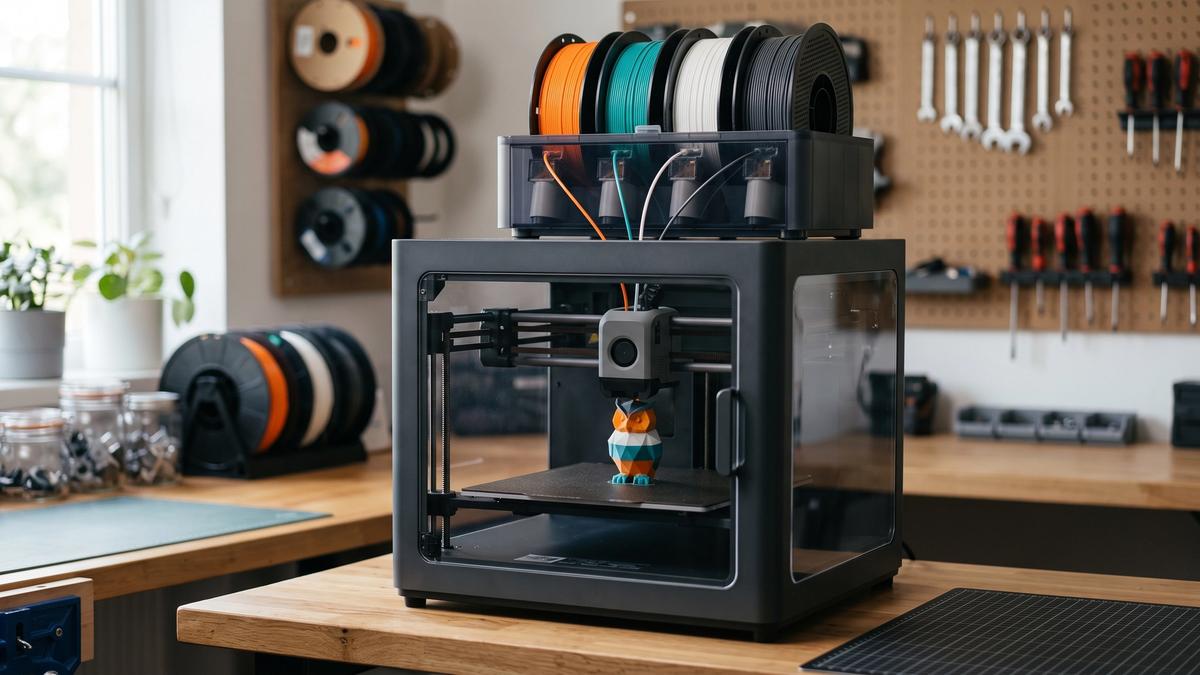

AMS stands for Automatic Material System - Bambu Lab's automatic filament-management system. Depending on the model, it stores one or more spools of filament and feeds the right one to the printer automatically, switching filaments mid-print whenever the model calls for a new color or material. It's the reason multicolor printing went from a niche hobby-within-a-hobby to something people do on a Tuesday evening.
Most explanations stop at the hardware: which unit fits which printer, and how to load it. That part changes every time Bambu releases a new model. What doesn't change is how AMS affects the prints themselves - why one four-color model barely takes longer than a single-color print while another takes several times as long, where all that "purge waste" comes from, and why some multicolor models print beautifully while others bury you in plastic scraps. That's what this guide covers.
What AMS actually is
A standard FDM printer has one nozzle and one filament path. To print in a second color, you'd have to pause the print, pull the old filament out, and load a new one by hand.
AMS automates exactly that. Most units are a box - or, on the entry-level version, an open rack - holding four spools. Each spool slot has its own motor that can push its filament toward the printer or pull it back. When the print needs a different color, AMS retracts the current filament, feeds the next one into the same nozzle, and the print carries on. On supported printers, several units can be chained together for more colors.
The important detail is that it's still one nozzle. AMS doesn't print colors side by side at the same moment - it swaps them, one at a time, as many times as the model needs. Almost everything else in this guide follows from that.
How a color change works
On supported Bambu printers, a typical swap looks like this:
- Cut and retract. The printer cuts or unloads the current filament near the toolhead, and AMS pulls it back into its slot.
- Feed. AMS pushes the next filament through the tubes into the hotend.
- Flush. The nozzle still holds molten plastic of the old color. The printer pushes new filament through until the old color is cleared out - this purged plastic is ejected as a small blob, often nicknamed "poop."
- Resume. Once the new color runs clean, printing continues where it left off.
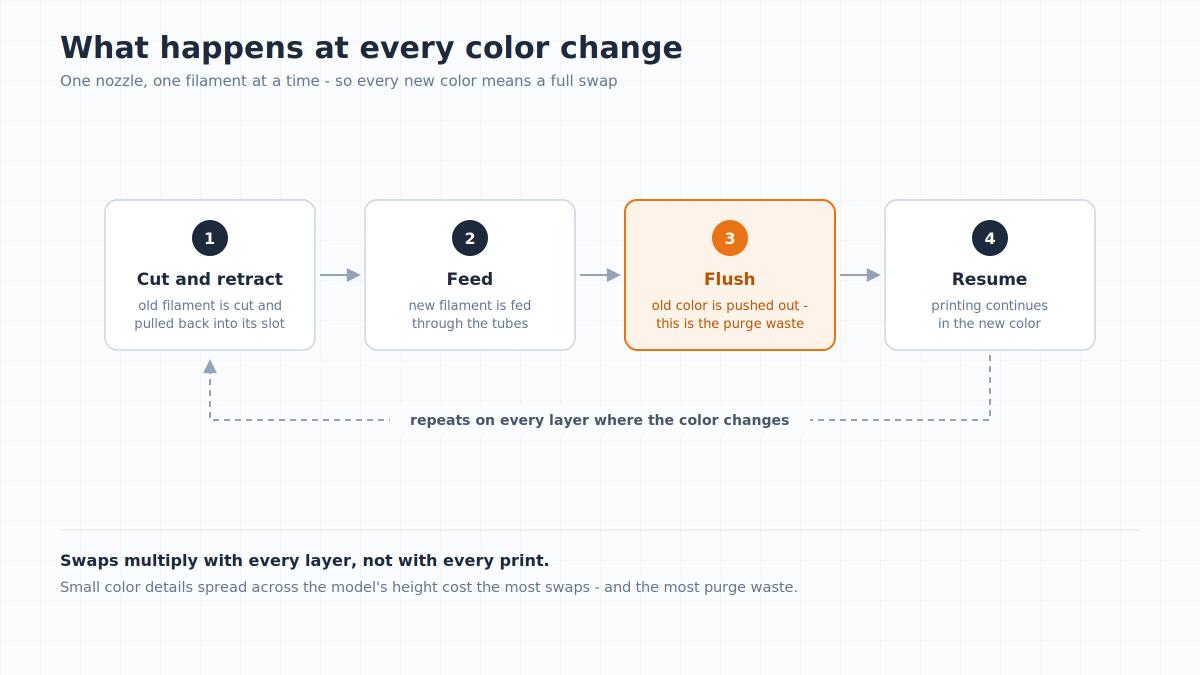
That sequence takes time, and it happens on every layer where the color changes - not once per print. A figure with a colored belt, colored eyes, and a colored base might trigger dozens of swaps per layer range, and hundreds or thousands over the whole print.
The AMS lineup, briefly
Bambu has released several AMS versions, and which one you can use depends on your printer. In broad terms:
- AMS lite - an open four-spool rack for the A1 series. Easy to load, but no enclosure and no drying.
- AMS (original) - an enclosed four-spool box with humidity monitoring, for Bambu's enclosed printers.
- AMS 2 Pro - the second-generation four-spool unit: sealed storage, active drying at up to 65°C, and RFID recognition of Bambu spools.
- AMS HT - a single-spool unit that feeds and dries at up to 85°C, for filaments that need more heat than the AMS 2 Pro's dryer can give, such as nylon and PC. It's a specialist drying-and-feeding unit, not simply a smaller AMS.
Units can be combined on supported printers - Bambu's specification for the AMS 2 Pro allows up to four AMS 2 Pro units plus eight AMS HT units, for 24 filaments in total.
Compatibility between units, hubs, and printer models changes with new hardware and firmware releases, so check Bambu's own compatibility table for your exact printer rather than relying on any third-party chart - including this one.
The hidden cost: purge waste and print time
The flush step is where multicolor printing gets expensive. Every swap throws away some filament, and the numbers add up quickly.
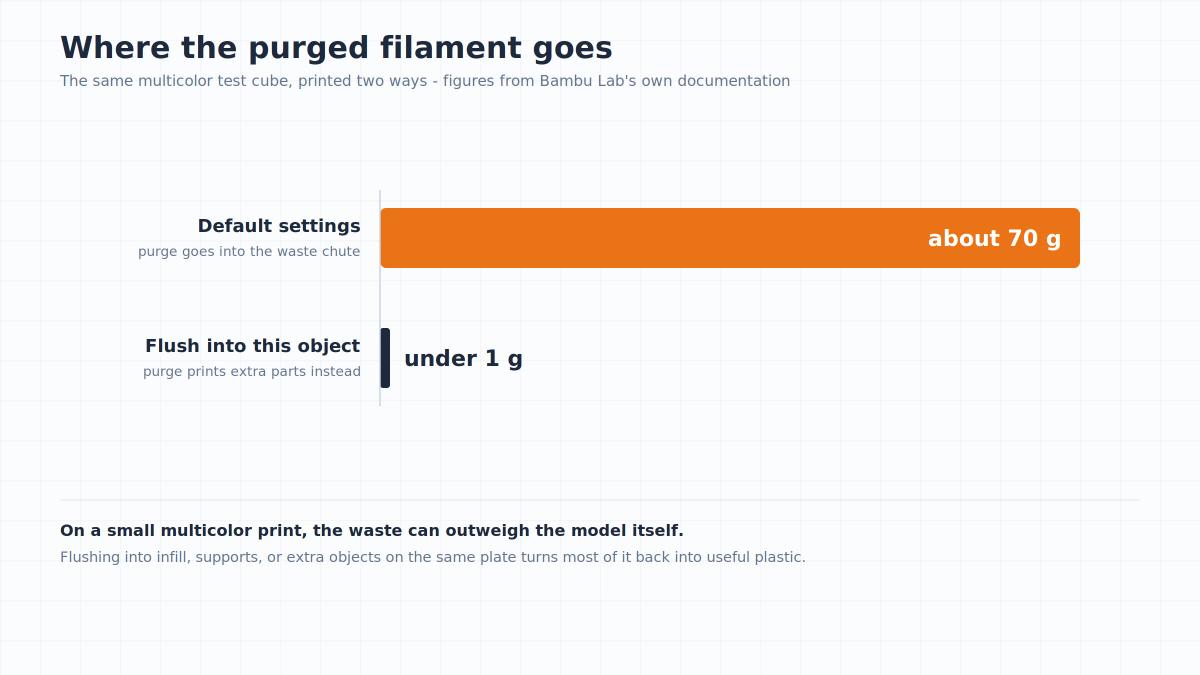
Bambu's own documentation uses a simple multicolor test cube as an example: printed normally, it needs about 70g of flushed filament - often more than the object itself weighs. With the waste redirected into other parts on the same plate, the same print wastes less than a gram.
A few things drive how much you waste:
- Number of swaps. More color changes per layer, across more layers, means more flushes.
- Which colors you switch between. Dark-to-light changes need far more purging than light-to-dark, because a trace of black in white is obvious while a trace of white in black isn't.
- Slicer settings. Bambu Studio calculates a flushing volume for every color pair, and the defaults are deliberately cautious.
And the slicer gives you tools to recover a lot of it:
- Flushing volumes. The per-pair table in Bambu Studio (and OrcaSlicer) can be tuned down if your colors switch cleanly.
- Flush into infill. Purged plastic goes into the model's hidden interior instead of the waste chute.
- Flush into support. The same idea, using support material you'll remove anyway.
- Flush into this object. Print a few useful single-color parts on the same plate and let them absorb the purge - the method behind that 70g-to-under-a-gram example.
Time follows the same logic. Every swap adds a cut, a retraction, a feed, and a flush. There's no fixed multiplier: a four-color model with large horizontal color bands may take only slightly longer than a single-color print, while one with small multicolor details on every layer can take several times as long - sometimes with more time spent swapping than printing.
What AMS changes about the files you print
Multicolor printing needs color information, and that changes which file format you want.
STL can't carry color at all. It stores geometry only - one shape, no materials. A multicolor model delivered as STL comes either as separate parts (one file per color, which you assign and align in the slicer) or as a single shape you'd have to paint yourself.
3MF can. A multicolor 3MF opens in Bambu Studio or OrcaSlicer with its colors already assigned to the right areas - you match them to the spools in your AMS and print. For AMS owners, that's the difference between a model that's ready in a minute and one that takes an evening of setup. Our 3MF vs STL comparison goes deeper on why.
Colors in the file vs. slots in your AMS. A model painted in six colors won't fit a single four-slot unit without changes. You can merge similar colors in the slicer, reassign two areas to the same spool, or accept a manual filament change partway through. Worth checking before you buy or download - not after.
How to choose multicolor models that print well
This is where AMS knowledge pays off in practice. Two models can look equally good in the preview and behave completely differently on the printer.
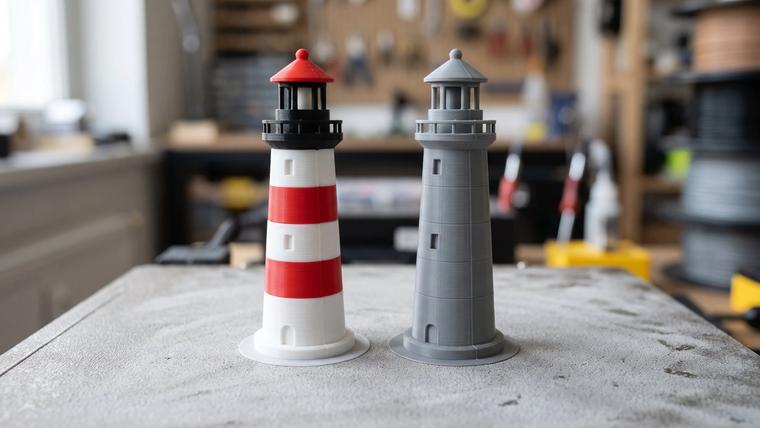
Colors that change with height are cheap. Colors that share layers are expensive. A vase with color bands stacked on top of each other switches colors only a few times in the whole print - once at each band. A figure with small painted details spread across its height - eyes, buttons, trim - forces swaps on every layer where those details appear. Tiny details are the most expensive: a pair of eyes a few millimeters tall can cost more swaps than the rest of the model combined.
Count the colors against your slots. Four colors on a four-slot unit prints unattended. Five means either merging colors or standing by for a manual swap.
Multi-part designs sidestep the problem. Some designers split a model into separate pieces, one per color, that snap or glue together after printing. Each piece prints in a single color with zero purge waste - and the result can look just as good. This works even without AMS.
Read the listing like a spec sheet. A well-prepared multicolor listing tells you how many colors the model uses, includes a 3MF with colors already assigned, and ideally shows the sliced preview or a real print. A single-color STL version alongside it is a bonus: you can print it plain first to check scale and fit before committing to a long multicolor job.
Watch the filament too. AMS handles most common filaments - Bambu lists PLA, PETG, ABS, ASA, PA, and PC among the supported materials for the AMS 2 Pro. The exceptions are soft flexibles and abrasive fills: generic TPU and TPE aren't supported (only Bambu's own stiffer "TPU for AMS" is approved for the feed path), and neither are non-Bambu carbon- or glass-fiber filaments. The list differs between units, so check the one for yours. Moisture-sensitive filaments also feed less reliably when damp - one reason the newer units add drying. Our filament guide covers which materials need dry storage.
Do you need an AMS?
AMS is one way to print in multiple colors, not the only one. The options, from simplest to most automated:
- Pause and swap. Set a color change at a specific layer height in the slicer and swap filament by hand. Free, works on any printer, and handles any design where colors change with height.
- Multi-part models. Each color is a separate piece, printed on its own and assembled. Zero purge waste, works on any printer.
- AMS and similar systems. Automatic swapping, including several colors within the same layer.
- Multiple nozzles or tool changers. Each color stays in its own hotend, cutting purge waste dramatically - at a significantly higher price.
You can skip AMS if you mostly print in one color, prefer multi-part designs, or only occasionally need a second color at a set height. It earns its place if you print multicolor models often, want colors that share the same layer, like leaving long prints unattended, or want several materials loaded and ready at once.
Other brands' versions
AMS is Bambu's name, but the idea isn't unique to Bambu. Prusa's MMU3 adds multi-material switching to Prusa's own printers, Creality has its CFS (Creality Filament System), and Anycubic has the ACE Pro. They differ in capacity, drying, and how they handle cutting and feeding, but all of them share the same basic trade-off: one nozzle, many swaps, and purge waste to manage.
Bambu's own H2D and H2C move toward the multi-nozzle approach, with a second nozzle and automatic hotend swapping that reduce how often the printer has to flush.
Frequently asked questions
What does AMS stand for in 3D printing?
Automatic Material System. It's Bambu Lab's automatic filament-management system: it stores filament and feeds the right spool to the printer automatically, making unattended multicolor and multi-material printing possible.Do I need an AMS to print in multiple colors?
No. You can print layer-by-layer color changes on any printer by pausing at a set height and swapping filament by hand, or print multi-part models one color at a time and assemble them. AMS is what makes colors that change within the same layer practical.Why does multicolor printing waste so much filament?
Because every color change has to flush the old color out of the nozzle. On models with many swaps, that purge can outweigh the model itself. Slicer settings like flush into infill, flush into support, and flush into objects can recover most of it.Can I print STL files with AMS?
Yes, but an STL has no color information. You'll either need a model split into separate STL parts, one per color, or you'll assign colors yourself in the slicer. A multicolor 3MF comes with colors already assigned.How many colors can an AMS print?
A standard unit holds four spools. On supported printers, several units can be connected - Bambu's specification for the AMS 2 Pro allows up to 24 filaments by combining four AMS 2 Pro units with eight AMS HT units. The limit depends on your printer and unit type, so check Bambu's compatibility information.Does AMS work with any filament?
Most common ones. The AMS 2 Pro supports PLA, PETG, ABS, ASA, PA, PC, and more. The main exceptions are generic TPU and TPE - only Bambu's stiffer "TPU for AMS" is approved - and non-Bambu carbon- or glass-fiber filaments. Filaments that need high-temperature drying are better paired with the AMS HT.
About the author
Written by
Ethan MillerI’m a 3D printing specialist with a background in mechanical design and hands-on experience with FDM 3D printing. I focus on filament selection, slicer settings, print optimization, and troubleshooting common printing issues. I enjoy testing different materials and printing techniques and sharing practical guides that help makers get more consistent and reliable results from their printers.