What is an STL file? Everything you need to know before printing


An STL file is the standard file format for 3D printing - a digital model that describes an object's surface as a mesh of tiny triangles, which your slicer turns into instructions your printer can follow. If you've ever downloaded a model to print at home, you've almost certainly handled one. Here's how STL files actually work, how to open them, what breaks them, and how to fix the common problems before they ruin a print.
What does STL stand for?
STL comes from stereolithography, one of the earliest 3D printing technologies, though you'll also see it expanded as Standard Triangle Language or Standard Tessellation Language. The format was developed by 3D Systems - the company founded by Chuck Hull, the inventor of stereolithography - back in the mid-1980s. Nearly four decades later, it's still the default format for hobbyist 3D printing. Not because it's the most advanced, but because everything supports it: every slicer, every printer, every model repository.
How STL files work
Open any STL model in your slicer and switch to wireframe view, and you'll see the trick: the entire surface is built from connected triangles. A sphere isn't actually round - it's hundreds or thousands of flat triangles arranged so closely that your eye (and your printer) reads them as a smooth curve.
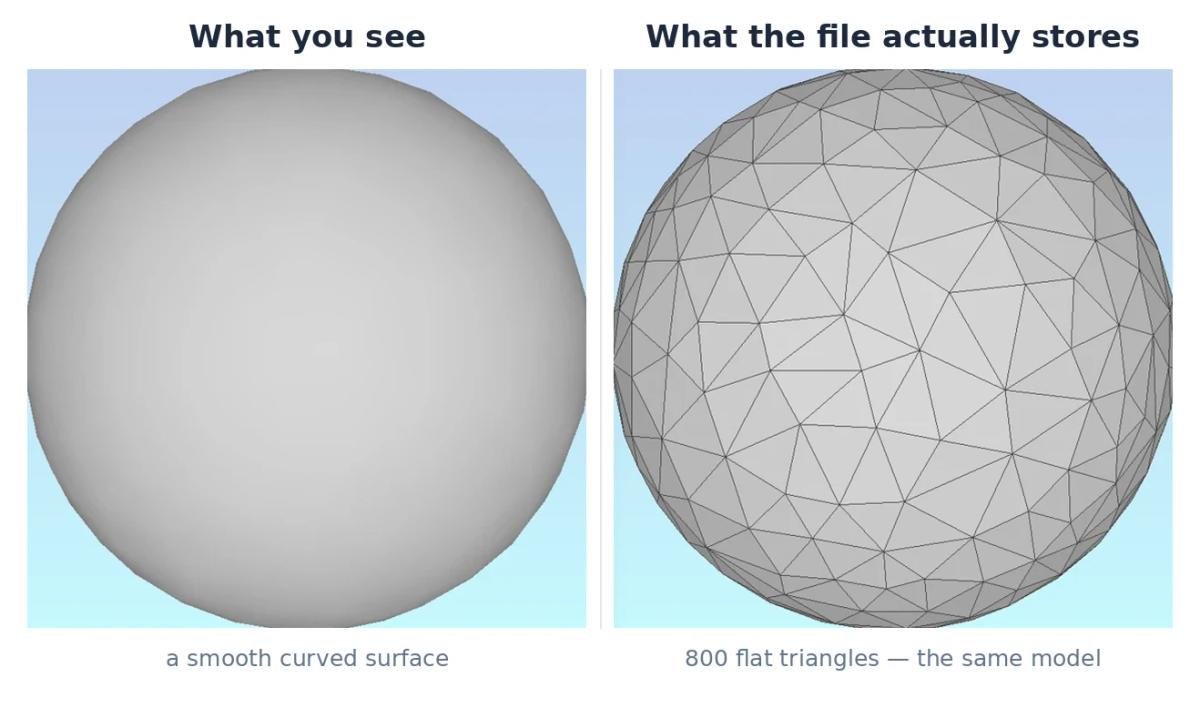
That's all an STL stores: the geometry of those triangles. No color, no texture, no material information - just the shape.
The triangle count is what determines quality. More triangles mean smoother curves and finer detail, but also a bigger file. A chunky low-poly vase might be a few hundred kilobytes; a highly detailed miniature with crisp armor trim can run into tens of megabytes. For home printing, more isn't always better - past a certain point, extra triangles describe detail finer than your nozzle or resin screen can physically reproduce, so the file just gets heavier for nothing.
What's actually inside an STL file
Here's something most guides skip: you can open an STL file in a plain text editor and read it.
That only works with the ASCII variant of the format (more on that in a second), but when it does, the structure is surprisingly simple. Every single triangle is described by the same repeating seven-line block:
facet normal nx ny nz
  outer loop
    vertex x1 y1 z1
    vertex x2 y2 z2
    vertex x3 y3 z3
  endloop
endfacet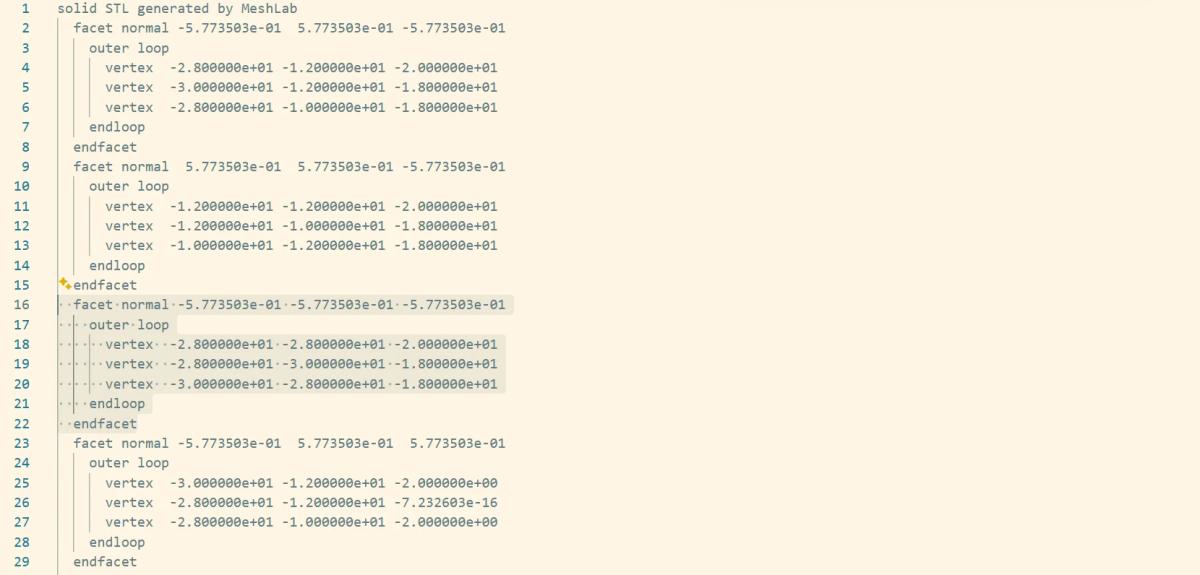
Three vertex lines give the corner coordinates of the triangle. The facet normal line defines which side of the triangle faces outward - how the slicer knows what's "inside" the model and what's "outside." A basic cube exported from Blender comes out to just 86 lines of text. That's the whole model.
This also explains why broken files behave the way they do. Delete a single triangle from that text file and the mesh is no longer sealed - there's a hole where a face used to be. Interestingly, the slicer doesn't always fail on this: if the missing face sits on a flat horizontal plane, slicing software can often still work out the solid body and generate perimeters and infill. Tilt that same object at an angle, though, and the slicer loses the plot - you get "empty layer" errors or visible gaps in the print. Keep that mental model handy; it makes every mesh error you'll ever see far less mysterious.
ASCII vs Binary STL
STL comes in two flavors. ASCII is the human-readable text version you just saw - easy to inspect, but bulky, since every coordinate is spelled out as text. Binary stores the same triangle data in compressed form and produces dramatically smaller files.
In practice, binary is the standard. Nearly every file you download from a model site will be binary, and whenever you export an STL yourself, choose binary - there's no quality difference, just a smaller, faster file. ASCII is really only useful when you want to peek under the hood.
How to open and view STL files
Here's the shortcut most beginners miss: you probably don't need a separate viewer at all. Every modern slicer doubles as an STL viewer. PrusaSlicer, Bambu Studio, OrcaSlicer, Cura, Lychee - drop the file in, and you can rotate, zoom, and inspect the model exactly as it will print. If your end goal is printing, the slicer is the right place to look at the file anyway.
If you just want a quick look without opening a slicer - say, checking a file on a machine that doesn't have one installed - ViewSTL is a free online viewer: drag the file into your browser and it renders, with basic camera and view controls. For a free desktop option with more inspection tools, MeshLab does the job - it also lets you switch between shaded and wireframe views, which is the quickest way to actually see the triangle mesh a model is built from.
Common STL problems before printing
When a downloaded model refuses to slice or prints with weird defects, the cause is almost always the same: the mesh isn't watertight. Somewhere in that web of triangles there's a hole, a flipped normal (a triangle facing the wrong way), a non-manifold edge, or overlapping shells - and the slicer can no longer tell what's solid and what's empty space.
Community-uploaded models are especially prone to this. Holes from amateur modeling and non-manifold geometry left behind by Boolean operations in Blender are the classic culprits.
The good news: most errors fix themselves before you ever notice.
- PrusaSlicer auto-repairs minor mesh errors on import and tells you how many it corrected. For a deliberate pass, use File → Repair STL File. There's also a Fix through Netfabb command for stubborn models - Windows only.
- Bambu Studio, OrcaSlicer, and Cura quietly auto-repair small errors when you import a model.
- One nuance worth knowing: Bambu Studio's auto-repair works on Windows, but not in the macOS version - Mac users need an external repair tool for broken meshes.
- Cura is the most permissive of the bunch: it will happily load models the others flag, without any warning. Sometimes that's convenient; sometimes it means the problem only shows up as a failed print.
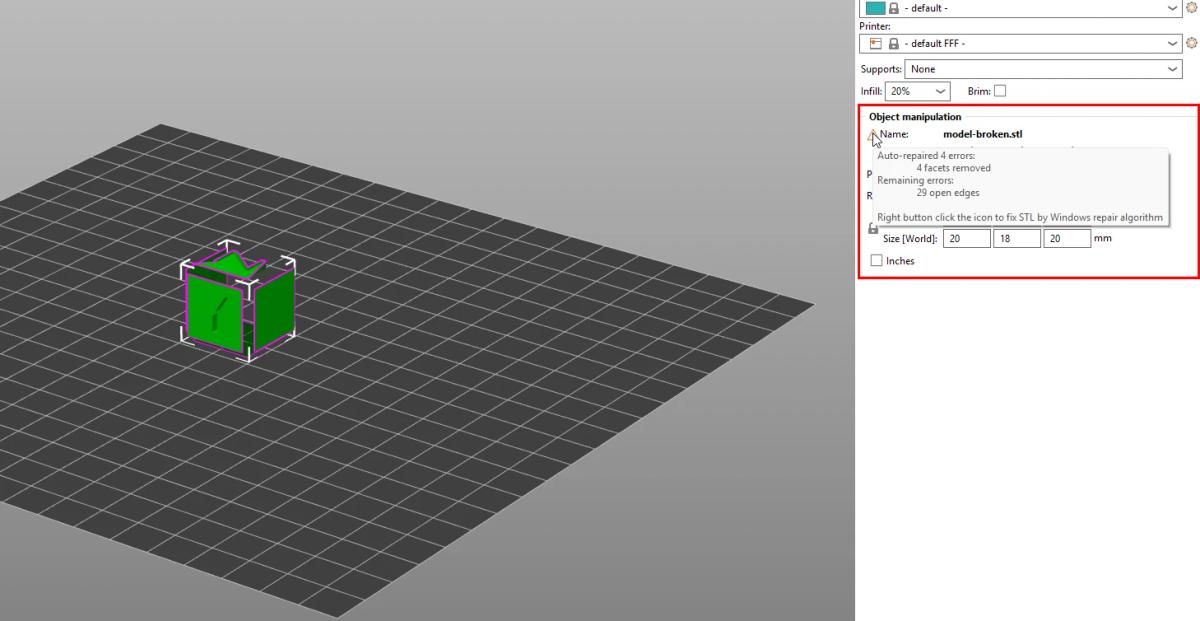
For badly broken meshes that auto-repair can't handle, free dedicated tools pick up the slack: Meshmixer shows you a color-coded map of exactly where the errors are, and Blender's 3D Print Toolbox add-on gives you full manual control when you want to fix the geometry yourself. (You may still see older guides recommend Microsoft 3D Builder - skip it: Microsoft discontinued the app and pulled it from the Store, so new installs are effectively impossible.)
STL vs other formats (3MF, OBJ)
STL isn't the only format you'll run into on model sites. Here's how the three main ones compare:
| Format | Stores color / texture | Typical use | Best for |
|---|---|---|---|
| STL | No - geometry only | Universal standard for 3D printing | Maximum compatibility with any slicer or printer |
| 3MF | Yes - color, materials, and more | Newer printing format | Multicolor and multi-material printing (especially Bambu workflows) |
| OBJ | Yes - via texture files | 3D graphics and some printing | Models where surface texture matters; less common in printing |
The short version: STL carries the shape and nothing else, which is exactly why it works everywhere. 3MF is the more modern format and matters most if you're printing in multiple colors or materials. Read our full 3MF vs STL comparison.
Where to get STL files
There's no shortage of places to download models. Free repositories are a great way to start - the classics of the hobby live there, and you can fill a print queue for months without spending a cent. The trade-off is quality control: as covered above, community uploads are where broken meshes are most common, and detail level varies wildly.
Curated paid marketplaces take the opposite approach: fewer models, but tested and print-ready. Model4Print is built around exactly that idea - a curated catalog where files are checked before they reach you.
A healthy library usually ends up being a mix of both.
Frequently asked questions
What does STL stand for?
STL comes from stereolithography, the 3D printing technology it was created for by 3D Systems in the mid-1980s. You'll also see it expanded as Standard Triangle Language or Standard Tessellation Language - all three names refer to the same format.Can STL files store color?
No. An STL file stores surface geometry only - a mesh of triangles with no color, texture, or material data. If you need color information in the file, for example for multicolor printing, you want the 3MF format instead.What program opens STL files?
Any modern slicer - PrusaSlicer, Bambu Studio, OrcaSlicer, Cura, or Lychee - opens STL files and doubles as a full 3D viewer. For a quick look without installing anything, the free online viewer ViewSTL works straight from your browser.Can I edit an STL file?
Yes, though STL editing works differently from editing a native CAD file - you're manipulating a triangle mesh, not clean parametric geometry. Free tools handle common tasks like scaling, cutting, and merging - our guide to editing STL files.Why does my slicer say the model has errors?
The mesh isn't watertight - it has holes, flipped normals, or non-manifold edges, so the slicer can't determine what's solid. Most slicers repair minor errors automatically on import. For seriously broken files, free tools like Meshmixer or Blender's 3D Print Toolbox can fix what the slicer can't.Why is my model tiny (or huge) in the slicer?
STL files contain no unit information, so slicers assume the numbers are millimeters. If a model was exported in inches or meters, it shows up wildly wrong-sized. Nothing is broken - just scale it in the slicer. A model designed in inches that looks tiny needs scaling to 2540% (1 inch = 25.4 mm).
About the author
Written by
Ethan MillerI’m a 3D printing specialist with a background in mechanical design and hands-on experience with FDM 3D printing. I focus on filament selection, slicer settings, print optimization, and troubleshooting common printing issues. I enjoy testing different materials and printing techniques and sharing practical guides that help makers get more consistent and reliable results from their printers.