STL to G-code: how to convert your files (and why there's no simple converter)
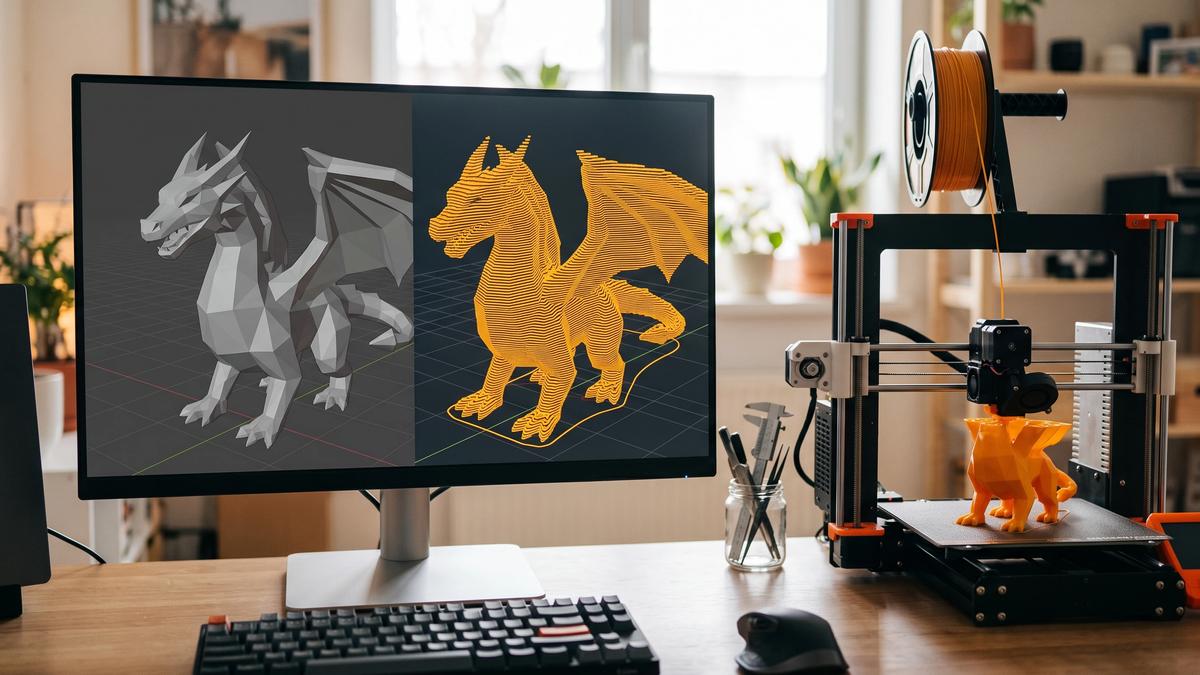

Search "STL to G-code converter" and you'll find plenty of tools that promise to do it in one click. Most of them don't do what you'd expect, and the ones that work aren't really converting anything - they're slicing. That distinction explains why the same STL produces different G-code on every printer, every filament, and every settings change.
This guide covers what G-code actually is, why no simple converter can replace a slicer, how to go from STL to a working print, whether downloading ready-made G-code files is a good idea, and what happens if you try to go the other way, from G-code back to STL.
STL and G-code aren't the same kind of file
An STL file describes a shape: a mesh of triangles with no information about how to print it. Our guide to what an STL file is covers this in detail, but the short version is what matters here - an STL stores coordinates without reliably specifying the intended physical units, such as millimeters or inches, and it has no layers or printing instructions of any kind.
G-code is the opposite. It's a list of instructions: move here, heat to this temperature, extrude this much plastic, move there. A typical FDM printer doesn't interpret an STL model directly. Its firmware executes machine instructions, such as G-code, one line after another.
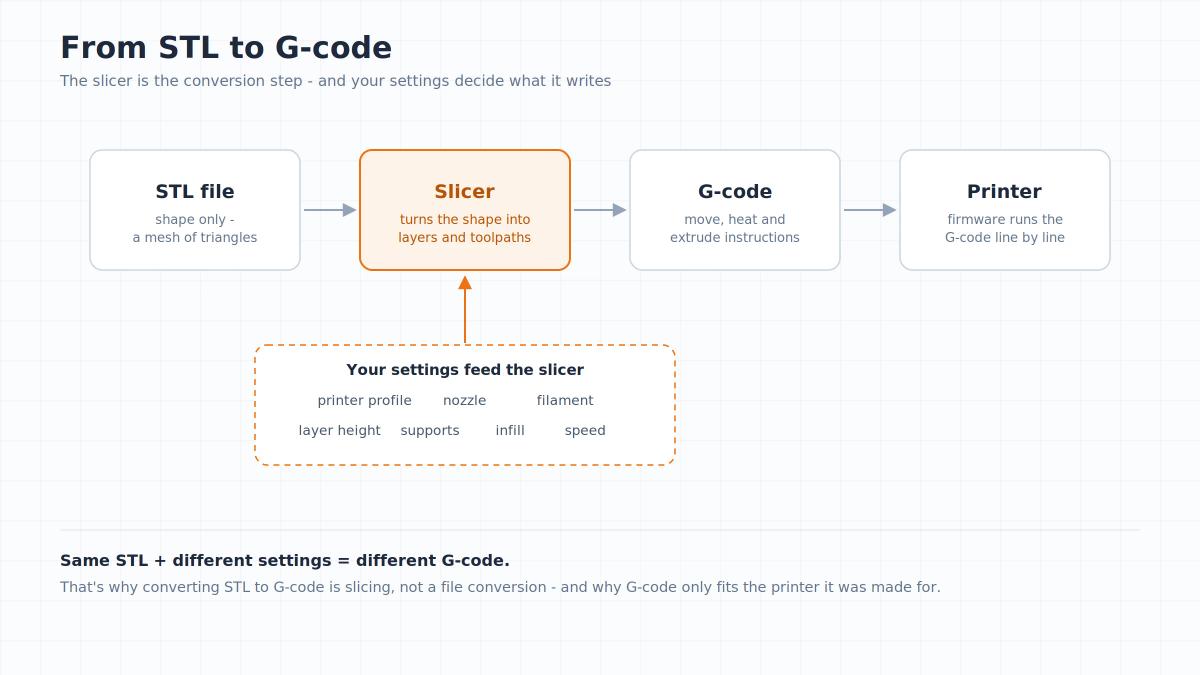
Getting from one to the other isn't a file format change, like turning a .docx into a .pdf. It's a computation: something has to decide how to build that shape, layer by layer, on your specific printer. That something is a slicer.
What is G-code in 3D printing?
G-code is the language 3D printers (and CNC machines) run on. Open a 3D printer G-code file in a text editor and you'll see thousands of lines like this:
G28                    ; home all axes
M104 S210              ; set hotend to 210°C, don't wait
M140 S60               ; set bed to 60°C, don't wait
M109 S210              ; wait until hotend reaches 210°C
M190 S60               ; wait until bed reaches 60°C
G1 X50 Y50 Z0.2 F3000  ; move to starting position
G1 X100 E10 F1500      ; move while extruding filament
A few patterns worth knowing:
- Lines starting with G are mostly movement:
G1moves in a straight line, optionally while extruding (E) filament. - Lines starting with M are machine commands: setting temperatures, turning fans on, pausing.
M104sets the hotend temperature and moves on immediately;M109sets it and waits until the nozzle reaches the target. A printer's start G-code may useM109before printing, so extrusion begins only once the nozzle is hot.- Everything after a semicolon is a comment - useful for reading the file, ignored by the printer.
G-code also isn't one fixed standard. Different printer firmware and manufacturers support different G-code commands and extensions - Marlin and Klipper are two common firmware examples - which is why slicers have a "G-code flavor" setting to match your printer. Some newer printers go further with their own formats, such as Prusa's compressed binary G-code.
You don't need to read G-code to print successfully. It helps when something goes wrong, or when you want to change something the slicer's interface doesn't expose - inserting a pause at a specific layer, for example.
Why does the same STL produce different G-code?
Because G-code depends on far more than the shape. Every one of these changes the instructions the slicer writes, even when the STL stays exactly the same:
- Printer - build volume, firmware, and G-code flavor decide where the nozzle can go and which commands it understands.
- Nozzle - its diameter sets how wide each line of plastic is, and so how many lines each wall needs.
- Filament - PLA, PETG, and ABS print at different temperatures, cooling levels, and speeds.
- Layer height - thinner layers mean more layers, more lines, and a longer file.
- Supports and infill - both add or remove whole sections of toolpaths.
- Speed - changes every movement command, even when the path stays the same.
That's why a G-code file is tied to one printer and one set of choices, while the STL behind it isn't.
STL to G-code converters: what they actually do
A real STL to G-code conversion has to account for all of the settings above, and none of them are stored in the STL. That's why a generic online "STL to G-code converter" can't do this properly: at best it runs a slicer behind the scenes with generic defaults, which is a worse version of using a slicer yourself with your actual printer's profile. The real slicers - PrusaSlicer, Bambu Studio, OrcaSlicer, and Cura - are all free.
Cloud slicers are the legitimate exception. Some printer-management platforms run a full slicer in the browser and let you pick your printer and filament profile. That's genuine slicing with proper settings, just without installing anything - useful on a Chromebook or tablet.
How to convert STL to G-code, step by step
1. Open the file in a slicer. Drag the STL into PrusaSlicer, Bambu Studio, OrcaSlicer, or Cura, or use the slicer's Open or Import command.
2. Select your printer and nozzle profile. This tells the slicer your build volume, nozzle diameter, G-code flavor, and a sensible set of starting defaults for your machine.
3. Select a filament profile. This sets the temperature, cooling, and speed defaults for your material.
4. Set orientation, supports, and infill. This is where you decide how the model will actually be built - what touches the plate, what needs support, how solid it is inside.
5. Slice. The slicer calculates every layer and every toolpath and generates the G-code. Check the layer preview before printing - it shows problems before they cost you filament.
6. Save or send it. Export to an SD card or USB drive, or send it directly if your printer is networked.
That's the whole process. There's no separate conversion step hiding anywhere in it - slicing is the conversion.
G-code files for 3D printers: should you download them?
Plenty of people search for ready-made G-code files, hoping to skip slicing altogether. They exist - printer makers often ship sample G-code on the SD card, and some model sites offer pre-sliced files for popular printers - but they come with real limits.
They only fit the printer they were sliced for. A G-code file carries the build volume, firmware flavor, nozzle size, and start sequence of one specific machine. Run it on a different printer and it may be rejected, print in the wrong place, or use the wrong temperatures.
They lock in someone else's decisions. Layer height, supports, infill, speed, and filament temperature are all baked in. If you want a different filament or a sturdier part, you can't change it without the original model.
They can't be scaled or edited. A G-code file is a set of moves, not a shape. You can't resize it, split it, or fix a flaw in the model the way you can with an STL.
That's why model files, not G-code, are the standard for sharing and selling 3D prints. An STL or 3MF is much more portable between printers because it contains the model rather than printer-specific toolpaths, and it leaves the slicing choices to you - and a 3MF can also carry colors and settings as a starting point, as our 3MF vs STL comparison explains. If a pre-sliced G-code file matches your exact printer, it's a convenient shortcut; otherwise, download the model and slice it yourself.
Can you convert G-code to STL?
Not in a way that gives you your original model back. G-code stores the path the nozzle traveled, not the surface of the object, so the shape itself was never saved in the file.
What you can do is turn those toolpaths into a mesh. Some slicers and dedicated tools can reconstruct a visual mesh from G-code toolpaths, but the result is not the original model. PrusaSlicer is one example: at the time of writing, its G-code preview and standalone G-code viewer can export the visible toolpaths as an OBJ file. Small open-source tools do something similar, rendering each extruded line as a thin tube and saving the result as STL.
The result is useful for rendering or visualizing a print, but it's a poor model to print again or edit. Every extruded line becomes its own tube, so even a small part can run to millions of polygons, and the "surface" is a bundle of lines rather than a clean shape. If you need to reprint or modify something, it's almost always better to find the original STL or 3MF - or to rebuild the part from measurements, as covered in our guide to making an STL file that actually prints.
Common problems
"My G-code won't open on my printer." It was probably sliced for a different printer or firmware flavor. Always slice with a profile for the printer you're actually using.
"The online converter gave me a file, but it won't print right." Generic web tools usually slice with broad defaults that don't match your printer, nozzle, or filament. The file may load, but expect poor first-layer adhesion, wrong temperatures, or a model that doesn't fit your build plate.
"My sliced file looks broken before I even print it." This is often not a G-code problem at all - it's the STL underneath. Non-manifold geometry or inverted normals confuse the slicer long before G-code enters the picture, so check the model itself first.
Frequently asked questions
How do I convert STL to G-code?
Open the STL in a slicer such as PrusaSlicer, Bambu Studio, OrcaSlicer, or Cura, choose your printer and filament profiles, set orientation and supports, then slice and export the G-code. Slicing is the conversion.Is there a free STL to G-code converter?
Yes - a slicer is what you normally use to generate G-code from an STL, and every major slicer is free. Simple online "converters" that don't ask for your printer and filament settings usually produce worse results than a slicer with your printer's own profile.Can I convert STL to G-code without a 3D printer?
Yes. You can slice an STL without connecting a physical printer - you just need the correct printer profile and settings in the slicer, then export the resulting G-code to use later or on another machine of the same model.Can a 3D printer read an STL file directly?
Not on a typical FDM printer. An STL only stores shape, and the printer's firmware executes machine instructions such as G-code, so the STL has to be sliced first.Where can I download G-code files for my 3D printer?
Some printer makers include sample G-code, and some model sites offer pre-sliced files for specific printers. They only work reliably on the exact printer they were sliced for, so for anything else it's better to download the STL or 3MF and slice it yourself.Can I convert G-code back to STL?
Only approximately. Tools like PrusaSlicer's toolpath export turn the printed lines into a mesh, which is fine for rendering but heavy and messy as a model. The original shape isn't stored in G-code, so for reprinting or editing, find the original STL or 3MF instead.What's the difference between G-code and M-code?
Both appear in the same file and are all "G-code" in the general sense. Lines starting with G mostly control movement and positioning; lines starting with M control the machine itself - temperatures, fans, and other hardware functions.Can I edit a G-code file directly?
Yes, since it's plain text - people do this to insert pauses, adjust temperatures mid-print, or fix a specific layer without re-slicing. It's a more advanced workflow, and a mistake can produce an unprintable or unsafe file, so keep a backup of the original.
About the author
Written by
Ethan MillerI’m a 3D printing specialist with a background in mechanical design and hands-on experience with FDM 3D printing. I focus on filament selection, slicer settings, print optimization, and troubleshooting common printing issues. I enjoy testing different materials and printing techniques and sharing practical guides that help makers get more consistent and reliable results from their printers.