How to convert an STL file to STEP (and why it's not simple)
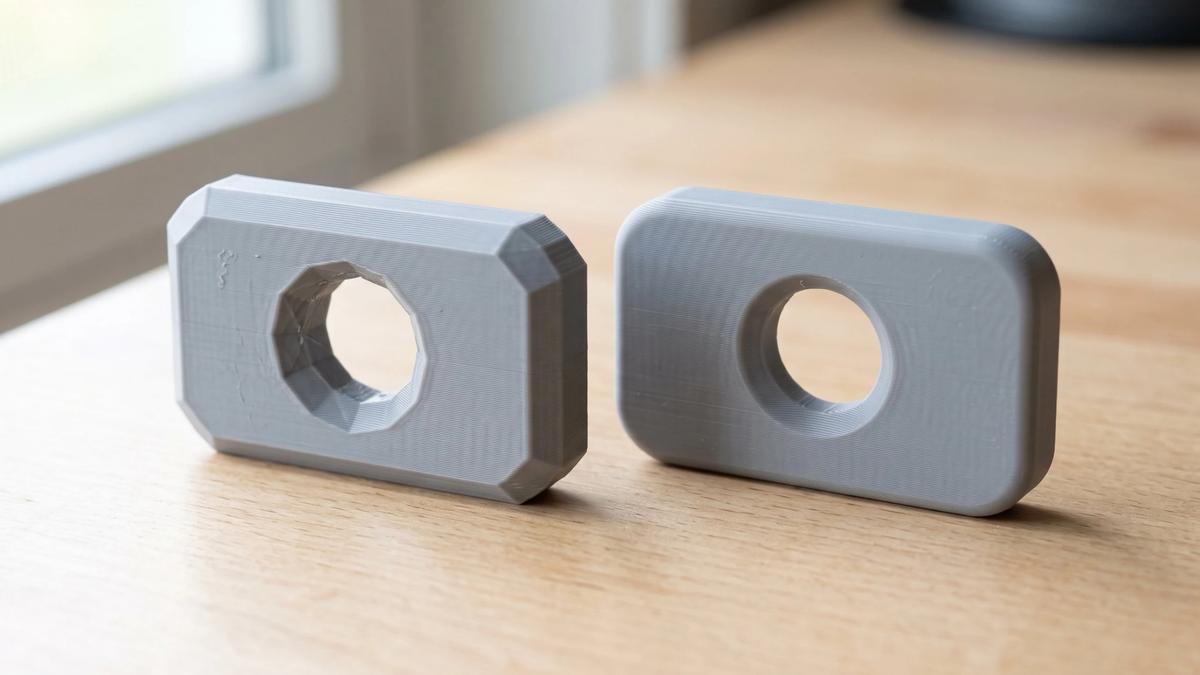

An STL file describes a model as a shell of flat triangles. STEP is the neutral format CAD programs use to exchange exact geometry: a hole is a true cylinder with a diameter, and a rounded edge is an arc with a radius. A one-click conversion can wrap an STL's triangles in a STEP file, but it can't recover the curves those triangles approximate. What you get is a solid built from flat faces, sometimes thousands of them. That's enough for some jobs and useless for others, so this guide covers when you need STEP at all, how to convert in FreeCAD and Autodesk Fusion, and when it's faster to remodel the part.
Do you actually need a STEP file?
For printing, no. Every slicer reads STL, and slicers that open STEP files turn them into a mesh first anyway. That's also why converting a downloaded STL to STEP won't make a print any smoother: an original STEP from CAD lets the slicer mesh the curves finely, but a converted one just hands it back the same flat triangles. If you want to scale, cut or combine a model, you can usually do that on the mesh itself - see our guide to editing STL files. And if what you're missing is color or print settings, that's a job for 3MF, not STEP, as our 3MF vs STL comparison explains.
People look for STEP when they want to:
- Edit a part in CAD with exact dimensions, such as widening a slot, moving a hole or adding a mounting tab.
- Send a part to a machine shop or manufacturer. CNC shops and injection molders work from STEP, though a converted STL may still need CAD work before they can use it.
- Use a part in a CAD assembly, for example to check that a printed bracket clears the rest of a build.
Before converting anything, check whether a real STEP file exists. If a model was designed in CAD rather than sculpted, the designer has the original, and some designers include a STEP file with the download or share one on request. That file will always beat a conversion.
Why converting STL to STEP doesn't bring the curves back
STL stores nothing but triangles: no holes, no arcs, no dimensions, just a list of flat facets that approximate the shape. When a CAD program exports an STL, it breaks every curved surface into facets and drops the original geometry. STEP, short for Standard for the Exchange of Product model data (ISO 10303), keeps the geometry itself. It doesn't keep the design history, though: even a genuine STEP file is edited by pushing and pulling its faces rather than changing the original sketches, which works because a hole really is a cylinder.
Converting in the other direction can't undo that. A converter turns each triangle into a flat face and stitches the faces into a solid. Autodesk's help describes Fusion's basic Faceted method exactly that way: each face on the mesh becomes one face on the new body.
To show what that means in numbers, we ran the steps in a short script with OpenCascade, the open-source geometry engine FreeCAD is built on, rather than in FreeCAD itself, so FreeCAD's exact counts may differ slightly. The test part was a 40 x 30 x 10 mm plate with rounded corners and a 10 mm hole. We saved it as STEP, exported it as an STL, converted that STL back to STEP and then merged faces that lie in the same plane, which is what FreeCAD's Refine Shape does.
| File | Faces | File size |
|---|---|---|
| Original CAD part, saved as STEP | 11 (6 flat, 5 curved) | 36 KB |
| Exported as STL | 696 triangles | 35 KB |
| STL converted back to STEP | 696 flat faces | 1.5 MB |
| Same STEP after merging flat faces | 176 flat faces | 0.7 MB |
Results from one test part. Face counts and sizes depend on how finely the STL was exported: a finer export of the same part gave 1,032 triangles and a 2.2 MB STEP.
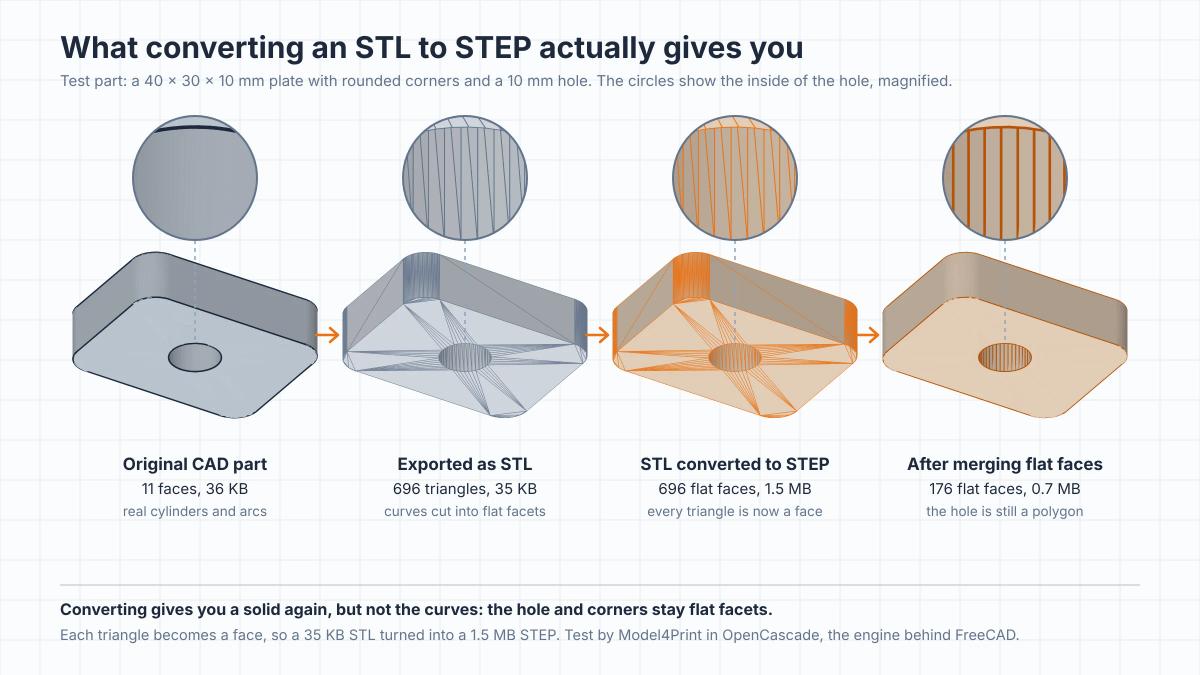
The converted part was a valid solid with practically the same volume as the original, so it's usable. But merging cleaned up only the flat top, bottom and sides. Every curved surface stayed a band of narrow flat strips: the hole is a polygon rather than a cylinder, so there's no diameter to edit, and the rounded corners have no radius to change.
The merge also worked as well as it did because the plate's flat faces lined up with the X, Y and Z axes. When we exported the same part tilted at an angle, merging barely helped: the 360 faces of that export went down to only 339. STL stores coordinates with limited precision, so triangles on an angled flat face end up very slightly out of plane, and the merge only joins faces that lie exactly in the same plane.
The file also grows with every triangle. In a second test, a sphere meshed into about 50,000 triangles turned a 2.5 MB STL into a 124 MB STEP. The more detailed the mesh, the bigger and slower the STEP gets, which is why converting a sculpted figurine rarely makes sense.
What a converted file is good for: you can cut it, add a hole or a boss, combine it with new geometry and export it again. What it can't do is behave like the original CAD model.
How to convert STL to STEP in FreeCAD
FreeCAD is free, open source and runs on Windows, macOS and Linux. The menu names below are from recent versions; older ones label a few commands slightly differently, as noted.
- Open the STL with File > Open. FreeCAD loads it as a mesh.
- Switch to the Mesh workbench with the workbench selector on the toolbar (or View > Workbench).
- Check the size. STL files don't store units, and FreeCAD reads the numbers as millimeters. Measure a feature you know; if the part was designed in inches, scale it by 25.4 with Meshes > Scale.
- Repair the mesh. Meshes > Analyze > Evaluate and Repair (Evaluate and repair mesh in older versions) finds holes, flipped faces and other errors that stop a mesh from becoming a solid: run the analysis, then repair what it lists. Our guide to STL files explains the common problems. If the mesh is very dense, Meshes > Decimate (Decimation in older versions) cuts the number of triangles, at some cost to detail.
- Switch to the Part workbench the same way and select the mesh.
- Create a shape with Part > Shape From Mesh (Create shape from mesh in older versions). Leave Sew Shape ticked and keep the default tolerance; if the next step fails on a model with very fine detail, try again with a smaller one, such as 0.01 mm. FreeCAD builds a new object with one face per triangle.
- Make it solid. Select the new shape and choose Part > Convert to Solid. Skip this and you get a hollow shell that other programs may treat as a surface.
- Merge flat faces with Part > Copy > Refine Shape (Create a copy > Refine shape in older versions). This joins faces that lie exactly in the same plane, which shrinks the file and makes flat areas easier to work with. It helps most with flat faces that line up with the axes; curved areas stay faceted.
- Export. Select the refined solid, optionally check it with Part > Check Geometry, then choose File > Export and pick STEP as the file type.
Dense meshes can take a long time to convert, and FreeCAD may look frozen while it works. To edit the part in FreeCAD before exporting, select the refined solid, switch to the Part Design workbench and choose Part Design > New Body (Create body in older versions): the solid becomes the body's base feature, and new sketches, pads and pockets build on it.
How to convert STL to STEP in Autodesk Fusion
Fusion (formerly Fusion 360) has a free personal-use license for non-commercial projects, and it includes STEP export.
- Insert the mesh. On the Mesh tab, choose Create > Insert Mesh (the Insert menu has it too), pick the STL and set Unit Type, since STL files don't store units.
- Prepare it. On the Mesh tab, Prepare > Repair fixes holes and other errors. If the mesh is very dense, Modify > Reduce cuts the number of faces, at some cost to detail. Autodesk notes that meshes with more than 10,000 faces still convert but take a significant amount of time. If you'll use the Prismatic method below, also run Prepare > Generate Face Groups, since Fusion uses the groups to work out which facets belong together.
- Convert with Modify > Convert Mesh: select the body, choose a method and click OK.
- Faceted turns every triangle into a face, the same result as FreeCAD's Shape From Mesh. It's the only method available with the free personal-use license.
- Prismatic merges groups of faces in prismatic features into single faces, so the facets of a hole can become one face. Autodesk says the results look identical to parametrically modeled bodies, and the method is available with a commercial license.
- Organic fits smooth surfaces to scanned or sculpted shapes and is part of a paid extension.
- Export with File > Export and choose STEP.
If the mesh isn't watertight, Fusion creates a surface body instead of a solid. Repair the mesh and convert again, or close the gaps with surface tools such as Stitch and Patch.
On the free license, a Faceted body's flat areas are still covered in triangles, but you can often clean them up: select one triangle on a flat face and press Delete, and Fusion usually heals the gap by merging the neighboring triangles that lie in the same plane into one face.
Other ways to get a STEP file
- SolidWorks. If you already have it, the STL import options (Tools > Options > System Options > Import) can bring a mesh in as a solid body, which you can then save as STEP. Set the import units to match the file. For very large files, SolidWorks suggests importing as a graphics or mesh body instead.
- Online converters. Most run the same faceted conversion on a server, so the result has the same flat faces. Many struggle with large meshes, and uploading a file hands a copy to a third party - for a model you bought, check its license and the site's privacy terms first.
- Blender. It edits meshes well but can't export STEP without a third-party add-on.
- Slicers. PrusaSlicer, Bambu Studio and OrcaSlicer can open STEP files, but they convert them into a mesh on import and don't save STEP. For printing, STL is all they need, as our guide to turning an STL into G-code explains.
When remodeling beats converting
You don't always have to rebuild the whole part. To turn a faceted hole back into a real one, sketch on a flat face, draw a circle through three corners of the faceted rim (most CAD programs have a three-point circle tool, called 3-Point Circle in Fusion) and cut it through the part. In a typical CAD export, the corners of the facets sit on the original circle - in our test file all of them did - so the cut restores the original hole as a true cylinder you can resize.
For a functional part you plan to change more than that, a clean rebuild often takes less time than working around a faceted conversion. It also gives you a STEP file like the 11-face original in our test rather than the 696-face copy.
Bring the STL into your CAD program as a reference instead of converting it, take measurements from the mesh or a print, and model the part over it with real holes and fillets. In Fusion, Create Mesh Section Sketch on the Mesh tab slices the mesh with a plane and turns the cut into a sketch, and while you edit that sketch, Fit Curves To Mesh Section lets you trace the outline with lines, arcs and circles you can extrude. Onshape can't convert a mesh into a STEP solid, but it can import an STL, use the mesh's points as references, and run some features, such as booleans, on a mix of mesh and solid bodies. A mixed model exports only as STL or Parasolid, so that's a way to modify a part for printing rather than to get a STEP file. On Onshape's free plan every document is public, so don't upload a model whose license doesn't allow sharing.
Organic models - figurines, sculpts and scans - are the opposite case. Neither converting nor remodeling makes sense for them, so keep the mesh and edit it in a mesh tool. And if you design your own parts, keep the native CAD file alongside every STL you export: our guide to making an STL file that prints covers the export side.
Frequently asked questions
Can you convert an STL to STEP for free?
Yes. FreeCAD is free and open source, and Fusion's free personal-use license includes its basic Faceted conversion and STEP export. Both turn each triangle into a flat face, so curved surfaces stay faceted in the STEP file.Will converting an STL to STEP make curves smooth?
No. An STL stores only flat triangles, so the converted STEP has flat faces where the curves were. Getting real curves back takes either a fitting tool, such as Fusion's Prismatic method for mechanical parts, which needs a commercial license, or remodeling the part in CAD.Why is my STEP file so much bigger than the STL?
Each triangle becomes a separate face with its own edges and points, all written out as text. In a test with a simple plate, a 35 KB STL became a 1.5 MB STEP. Merging flat faces cut that to 0.7 MB because the plate's flat faces lined up with the axes, but the curved areas still added well over a hundred faces.Can you convert STEP to STL?
Yes, and that direction is easy. Any CAD program can export STL, and slicers such as PrusaSlicer, Bambu Studio and OrcaSlicer open STEP files directly by converting them to a mesh.Why does Fusion turn my STL into a surface instead of a solid?
The mesh isn't watertight: it has holes or gaps, so Fusion can't close it into a solid. Repair the mesh before converting, or close the gaps afterward with surface tools such as Stitch and Patch.Can Blender convert STL to STEP?
Not on its own. Blender can't export STEP without a third-party add-on, so use a CAD program that converts meshes, such as FreeCAD or Fusion.Can I convert an STL I bought to STEP?
That depends on the model's license, not the file format. Whatever the license says about editing, sharing and selling applies to a STEP you make from it, and uploading the file to an online converter means handing a copy to someone else.
About the author
Written by
Ethan MillerI’m a 3D printing specialist with a background in mechanical design and hands-on experience with FDM 3D printing. I focus on filament selection, slicer settings, print optimization, and troubleshooting common printing issues. I enjoy testing different materials and printing techniques and sharing practical guides that help makers get more consistent and reliable results from their printers.